

Add or change a customer
One customer and its main branch, with the money terms and the place a rep checks in. Who: administrator · Where in the cycle: Set up.
Before you start
Section titled “Before you start”- You need Add and change customers (CUSTOMER_MANAGE).
- The price list exists (Make price lists).
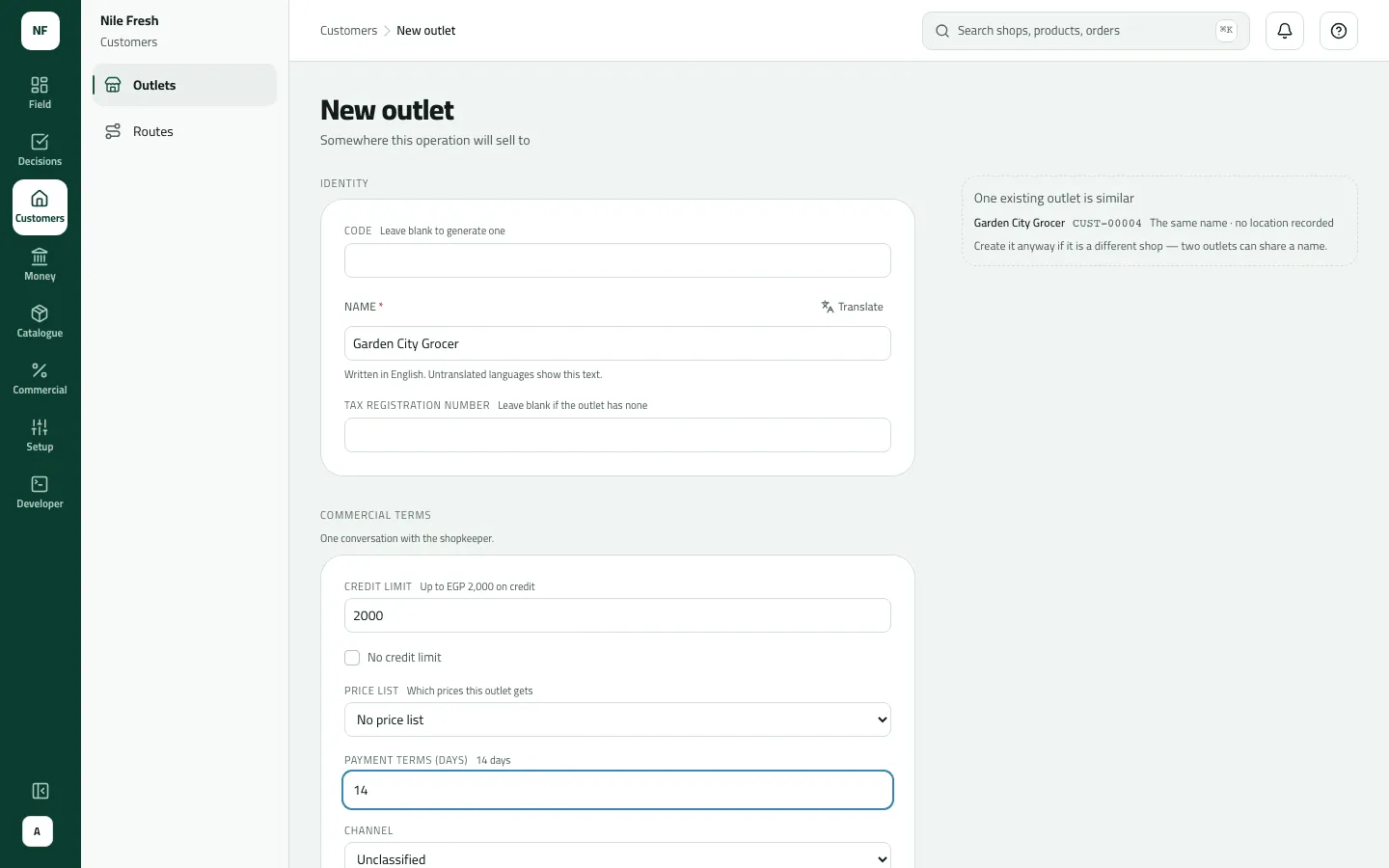
- Open Customers › Outlets and press New customer (the form is titled New outlet).
- Code — leave blank to get the next CUST- number. It can’t be changed later.
- Name in English and/or Arabic. While you type, Possible duplicates lists customers that look the same; create it anyway if it is a different shop.
- Tax registration number, if the customer has one.
- Credit limit — the words under it say what you typed means (“Cash only — no credit”, “Up to EGP 2,000 on credit”). Or tick No credit limit: no order is ever refused for credit.
- Price list, Payment terms (days) (0 = cash on delivery), Channel, Delivery days.
- Address, then click the map where the shop is to place the Outlet pin (drag it to the door). Set the Check-in radius (150 m unless you change it).
- Blocked — no new orders only if the shop is on hold.
- Press Create outlet. The list shows “Customer created.”
- Credit limit
- No credit limit
To change a customer, use the list’s row menu › Edit (or Edit customer on its page), change the fields, and Save.
Example
Section titled “Example”Garden City Grocer: code left blank → CUST-00004, credit limit 2,000 (“Up to EGP 2,000 on credit”), price list RETAIL, payment terms 14 days, channel Retail, pin at the door, radius 150 m.
What happens next
Section titled “What happens next”- The customer and its Main branch exist. A rep sees it after a sync once it’s on their route (put it on a route).
- A credit limit of 0 (or blank) means cash only: with the company’s over-credit rule on Block, every credit order is refused.
- Recorded in the audit trail (“Added an outlet”).
If something goes wrong
Section titled “If something goes wrong”| What you see | What to do |
|---|---|
Another record already has this code. Choose another code. DUPLICATE_CODE | Another record has this code. Choose another, or leave it blank. |
This code belonged to an outlet that was removed. Bring that outlet back, or choose another code. CUSTOMER_CODE_REMOVED | A removed customer had this code. Press Bring the removed outlet back to revive it with its history, or choose another code. |
The pin isn't valid. Give both latitude (-90 to 90) and longitude (-180 to 180), and a radius in metres. INVALID_LOCATION | Place the pin again on the map. |
There's no price list with that code. Check the code under Catalogue, Price lists. UNKNOWN_PRICE_LIST | That price list is gone. Pick another. |
Payment terms aren't usable. Write the days to pay, from 0 for cash up to 365. INVALID_TERMS | Payment terms are whole days, 0 to 365. |
Some customer details aren't valid. Check them and try again. INVALID_CUSTOMER | A detail isn't valid; check the fields marked. |
This comes from your ERP, so it can't be changed here. Change it in the ERP. ERP_MASTERED | This customer comes from your ERP. Change it there. |
The radius slider stops at 500 m | The form allows 25–500 m. A larger radius (up to 5,000 m) can only come from an import. |