

Set up your company from nothing
Follow the Set up your company card on the Dashboard, step by step, until it says Your company is set up. Who: the company administrator · Where in the cycle: Set up.
Before you start
Section titled “Before you start”- You hold the Administrator role (it includes Run the company (full access) and every other permission). The company’s first administrator gets it when the company is created.
- You have signed in and chosen your own password.
The setup card
Section titled “The setup card”The card sits at the top of the Dashboard and is shown to administrators. It ticks each step from the company’s own data, says what is missing (“No warehouse yet”, “No prices yet”…) and links to the screen that does it. The count at the top reads “3/7 steps done” and so on. Do the steps in the card’s order: each one needs the ones before it.
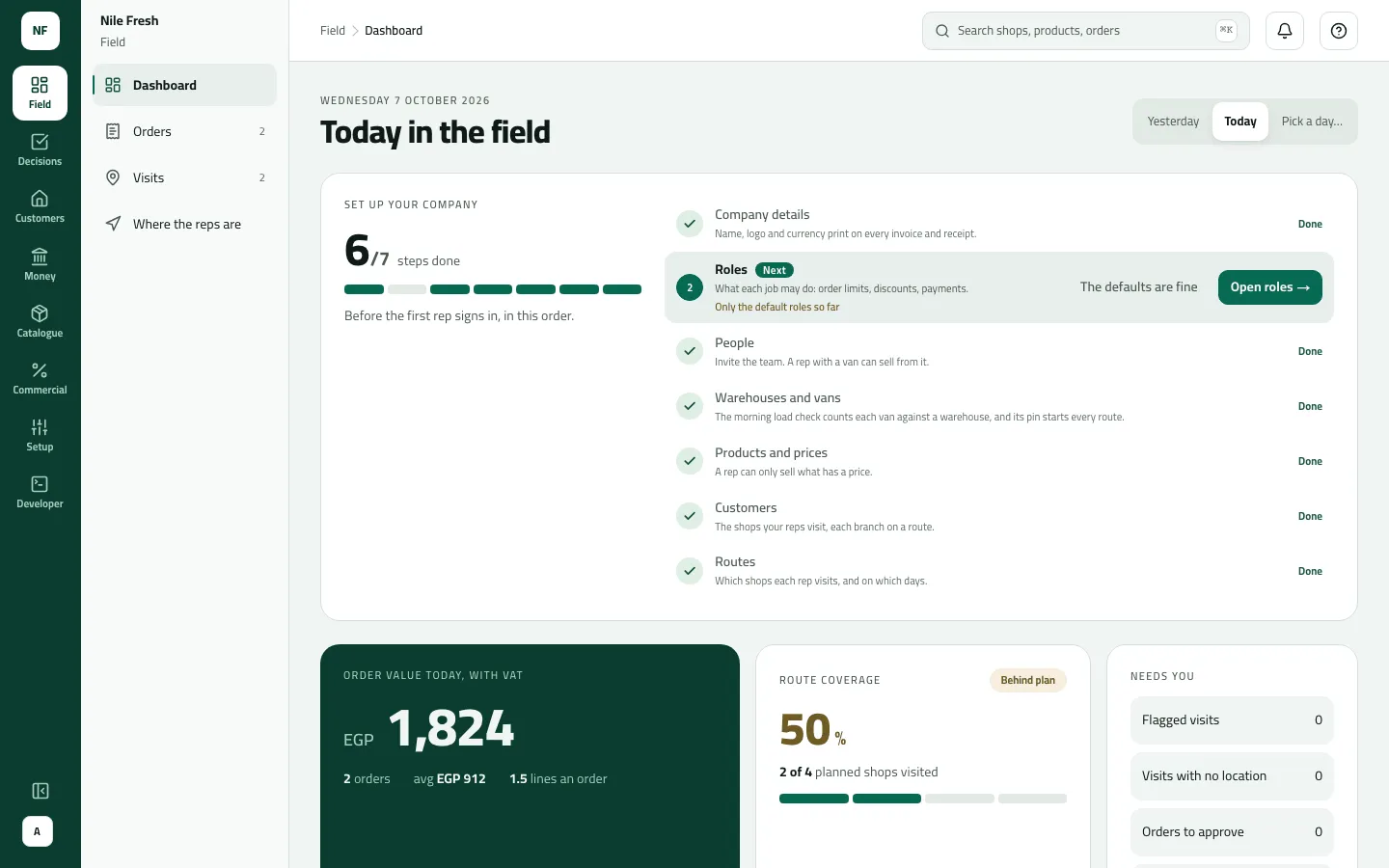
- Each step, in order
- The defaults are fine
- Company details — Open settings. Name, currency, VAT and whether prices include it, default language, time zone, and what happens to an order over a customer’s credit limit. Then the Field rules tab: how reps check loads, visit, check in and share their location. A new company starts with EGP, VAT 14 with Prices include tax ticked, English, Africa/Cairo and over-credit orders Block: change what doesn’t fit, above all Prices include tax if your list prices are before VAT. See company settings and field rules.
- Roles — Open roles. Three roles come built in: Sales Representative, Supervisor and Administrator. Change their limits or add your own, or press The defaults are fine. See Make a role with limits.
- People — Invite someone. Invite the team; reps get a Temporary password (the only sign-in the phone app takes). Put each supervisor On a round first, as Team lead, so the reps can report to them; then each rep, with a van if they sell from one. The step is done when one rep has a van. See Invite people and Put someone on a round.
- Warehouses and vans — Open stock. Add a warehouse with New warehouse and set its pin with Warehouse pins: the morning load comes from it, and its pin starts every route. Vans arrive with the reps. Before the first load, put stock into the warehouse with Move stock › Goods came in (Receive goods). See Add a warehouse.
- Products and prices — Add products (Add units while there are none, Set prices once products exist). Units first (Piece, Carton), then products, then a price list with prices. A rep can only sell what has a price. See units, products and price lists.
- Customers — Add a customer, one by one or by import: credit limit, price list, map pin and check-in radius. The step is done once a branch is on a route. See Add or change a customer.
- Routes — Plan a route. Which branches each rep visits, on which days, in what order. See Create a route.
When all seven are ticked the card says Your company is set up; press Put away.
Example
Section titled “Example”How Nile Fresh was set up:
| Step | What they entered |
|---|---|
| Company details | Currency EGP, VAT 14 with Prices include tax unticked (VAT is added on top), over-credit orders Needs approval. Field rules: load check Confirm only with Accept the load before selling from the van, check-in outside the radius Block, selling without checking in Not allowed, location Live during the day. |
| Roles | The defaults are fine. |
| People | Sara (Supervisor) on a round as SUP-01, Team lead; Omar Hassan (Sales Representative, temporary password) on a round as REP-03 with van VAN-03, reporting to Sara. |
| Warehouses and vans | MAIN “Main warehouse”, pinned on the map; on the morning of the day, Goods came in: 120 Juice 1L and 100 Water 6-pack on supplier note GRN-2026-0412. |
| Products and prices | Units PCS and CTN; Juice 1L and Water 6-pack, sold by the piece, carton of 12; price list RETAIL with Juice 1L 100.00 and Water 6-pack 50.00 a piece. |
| Customers | Nile Market, Delta Kiosk, Zamalek Corner and Garden City Grocer, credit limits 5,000 / 300 / 3,000 / 2,000, price list RETAIL, check-in radius 150 m. |
| Routes | CAIRO-03 for Omar, the four shops. |
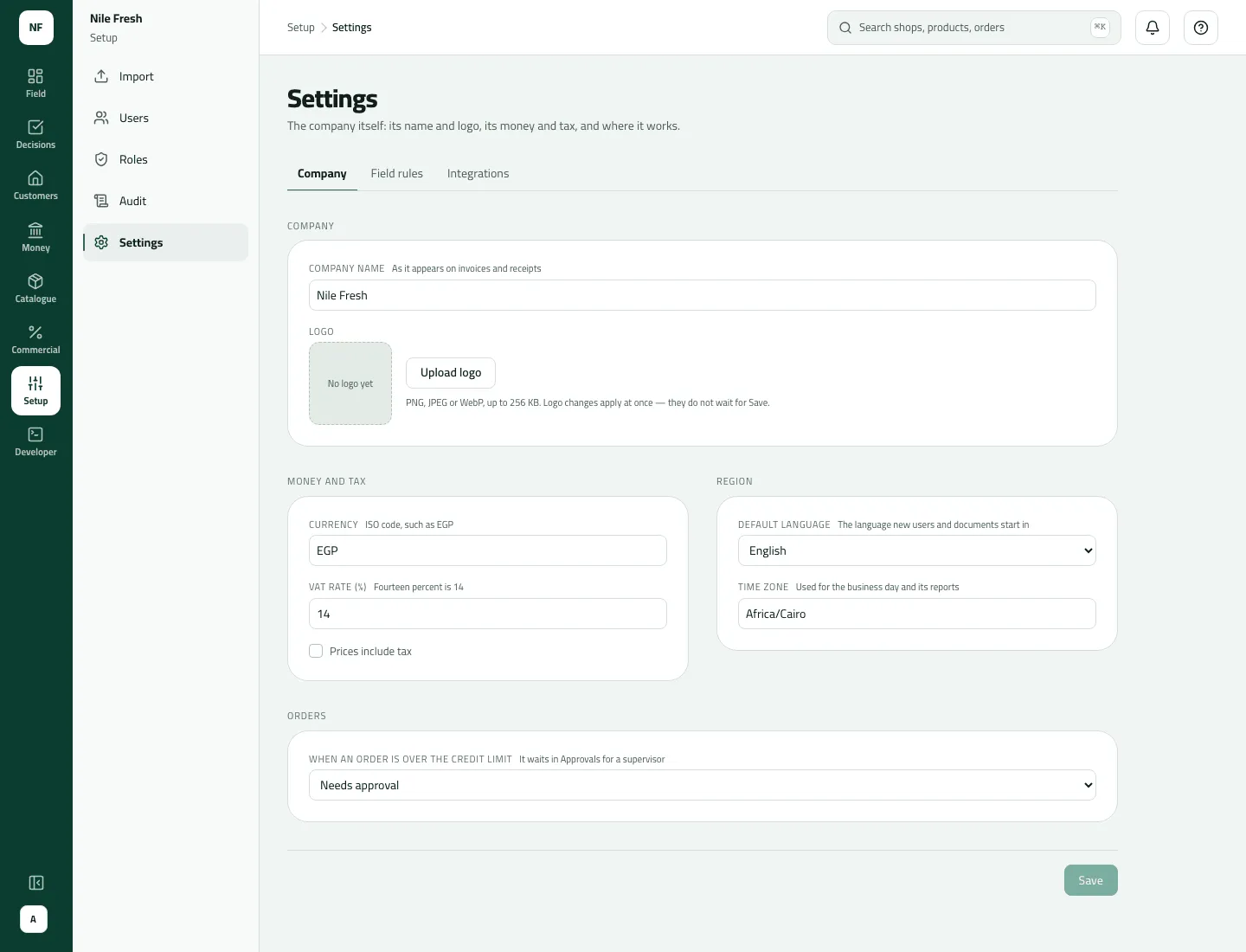
- VAT rate (%)
- Prices include tax
- Time zone
- Over the credit limit
What happens next
Section titled “What happens next”- Day plans are made from the routes automatically, every hour, for today and the next 7 days; creating the route makes them at once. Omar sees his stops when his phone syncs.
- Next: get the rep on the road: receive goods into the warehouse, then load the van.
If something goes wrong
Section titled “If something goes wrong”| What you see | What to do |
|---|---|
The card came back | Put away (and The defaults are fine) is remembered in this browser only. Another browser or a cleared one shows it again until you put it away there. |
A step says Could not check this | The card couldn't read that part (often a missing permission). It is not saying the step is undone. |
This order goes over the shop's credit limit. Collect a payment first, or take a smaller order. CREDIT_LIMIT_EXCEEDED | A customer created with credit limit 0 is cash only, so every credit order is over its limit. Set the customer's credit limit. |
A product has no price today. Remove it or ask the office to set a price. NO_VALID_PRICE | The product has no price in force today on the customer's price list. Add the price on Catalogue › Price lists. |
This shop has no price list. Ask the office to assign one. NO_PRICE_LIST | Give the customer (or its branch) a price list. |