

My work hasn't reached the office
The rep sold, collected and took returns, but the office sees nothing — or the phone’s pill still says 3 waiting, or a red 1 failed. Everything a rep saves stays on the phone until a sync sends it, and a sync runs only when the rep does something that starts one. Who it happens to: reps who work without signal; supervisors waiting for a rep’s day. Where in the cycle: every stage.
Check, in this order
Section titled “Check, in this order”-
Read the pill on Today (top right).
- Everything sent — the work reached the office. If the office still can’t find it, go to step 5.
- 3 waiting — saved, not sent. Go to step 2.
- Offline — your work is saved — the last sync couldn’t reach the office. Go to step 2.
- 1 failed (red) — go to step 3.
-
Sync in signal. Pull down on Today (or on the Van tab), or tap Send now on Orders, or Sync now in Settings. The pill shows Sending…, then Updating…, then Everything sent. If it goes back to Offline, there is no signal the phone can use; try again where there is.
-
“N failed” — don’t sign out. After 12 failed tries the phone stops sending an item. The tries are spaced out (seconds apart at first, then 15 minutes), so a rep who keeps syncing without signal can reach 12 in about an hour and a half. Signing out deletes it; there is no button to send it again. The work is still on the phone. Keep working — new work still goes when you sync — and call the office. Settings › Synchronisation shows how many failed.
-
Another rep can’t sign in on this phone. “Work from Omar hasn’t been sent yet…” means Omar’s work is still waiting on it. Omar signs in on this phone and syncs until everything is sent; then the next rep can sign in. If Omar’s work is failed, it blocks the phone until Omar signs out — which deletes it — so call the office before anyone does.
-
The office side. An administrator opens Developer › Events › From the phones and ticks Refused only. If the work is listed as Refused, it reached the office and was refused — the rep sees it under N items the office did not accept on Today (Fix work the office did not accept). If it isn’t listed at all, it never left the phone: go back to step 1 on the rep’s phone.
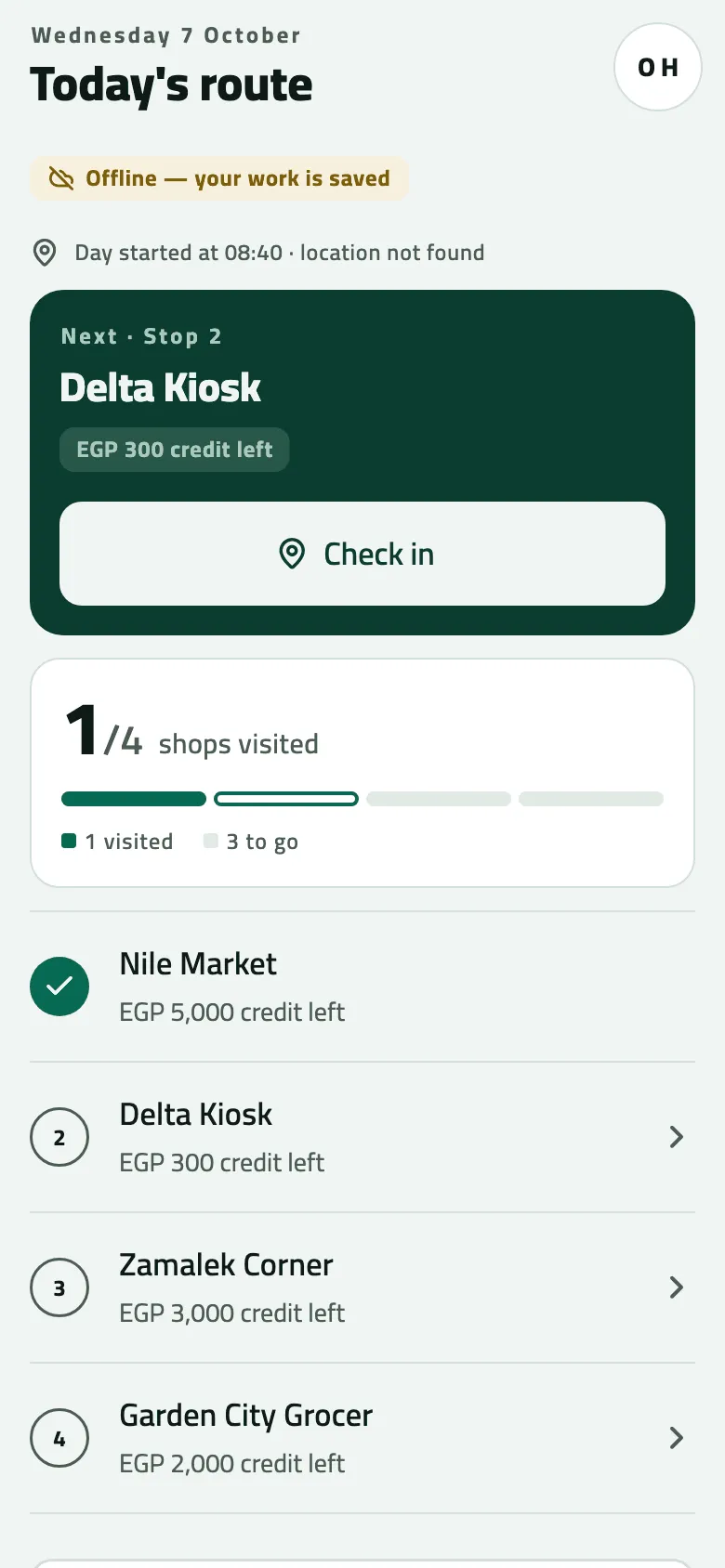
- Offline: your work is kept on the phone

- Failed: work the phone gave up sending
It looks out of date, but isn’t stuck
Section titled “It looks out of date, but isn’t stuck”- The Van tab still shows goods you sold. Until a sale syncs, the Van tab still counts it; the order screen shows what is really left. Sync to bring the Van tab up to date.
- “Provisional invoice”, with no number. The sale hasn’t synced. After the sync the official invoice, with its INV- number, replaces it.
- Take goods back says “Nothing has been invoiced to this shop yet”, or lines are missing. The phone hasn’t fetched the shop’s latest invoices. Pull down on Today.
- The receipt has no RC- number. The receipt from the phone stays provisional; its number is in the console under Money › Receipts.
If something goes wrong
Section titled “If something goes wrong”| What you see | What to do |
|---|---|
3 waiting, after signal came back | The phone doesn't send by itself. Pull down on Today. |
Offline — your work is saved and goes when there is signal. | Send now couldn't reach the office. Try again in signal. |
1 failed | Don't sign out. Call the office; keep working, new work still goes. |
Work from Omar hasn't been sent yet. Sign in as them and sync first, or ask your supervisor. | Omar signs in on this phone and syncs first. |
Unsent work will be lost and this device will be cleared. | Tap Cancel. Sync until the pill reads Everything sent, then sign out. |
Your session ended. Sign in again — your work is kept. | Sign in as yourself. Nothing you saved is lost. |
The app needs an update to send this. Update the app. UNKNOWN_OPERATION | The app is too old for what it is sending. Update the app, then sync. |
When to contact Slflo
Section titled “When to contact Slflo”When a rep has red failed work that matters (a sale, a payment) — before anyone signs out. Give the rep’s name and the phone’s Device ID (in Settings). Slflo can’t promise to recover it, but signing out makes sure it is gone.