

Set up a product's units, batches and picture
What a product is, and the units it is sold in. Who: administrator · Where in the cycle: Set up.
Before you start
Section titled “Before you start”- You need Manage products and prices (CATALOG_MANAGE).
- The units exist on Catalogue › Units (e.g. PCS and CTN) — Add units.
- Open Catalogue › Products and press New product (or Edit on a row).
- Name in English and Arabic. Code — leave blank to get the next SKU- number; it can’t be changed later.
- Base unit — the smallest unit you count stock in (all stock is kept in it).
- Category and Brand (optional), Stock tracking (None, Batch, Serial), and Available to order (untick to hide it from reps and keep its history).
- Units panel: the base unit is there with factor 1. Add another unit — e.g. CTN — with how many base units it holds, an optional Barcode, and pick which is the Default unit (what reps are offered first).
- Press Create product (or Save changes). If the button is grey, the “Needs …” line says what’s missing.
- Once saved: Picture (Upload: JPEG, PNG or WebP up to 200 KB), Batches (for Batch tracking: code, made on, expires on) and Attributes.
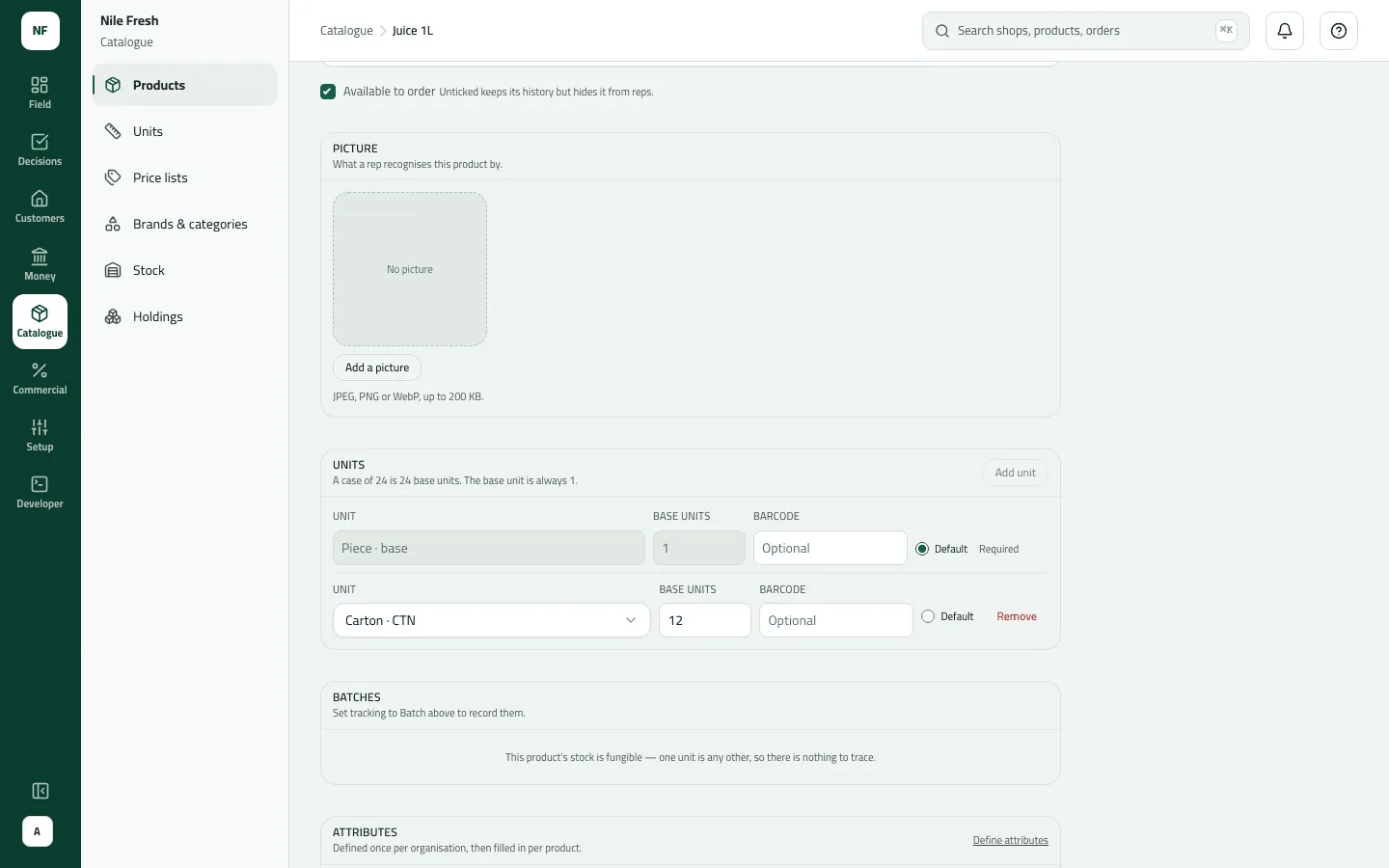
- Base unit: Piece
- Case of 12
- Default
Example
Section titled “Example”Nile Fresh’s Juice 1L: code JUICE-1L, base unit PCS, Units: PCS (base, 1, default) and CTN = 12 base units with its carton barcode; Stock tracking None. Loading 5 CTN onto VAN-03 later moves 60 PCS. Its prices are set separately on the price list: 100.00 a piece, and a carton price of its own.
What happens next
Section titled “What happens next”- Phones get the product at their next sync; it can be sold once it has a price on the customer’s price list.
- A carton can be priced only once CTN is one of the product’s units.
- Recorded in the audit trail (“Added a product”, “Set a product’s units”).
If something goes wrong
Section titled “If something goes wrong”| What you see | What to do |
|---|---|
Create product stays grey with a Needs … line | Do what the line says: a name, a base unit, a factor on every unit, one default. |
No units yet — add them first | Add units on Catalogue › Units, then come back. |
Save the product first, then add its batches. | Create the product, then add batches. |
… is not sold in CTN. Add it to the product's units first | A price in a unit the product doesn't have is refused. Add the unit here, then price it. |
Another record already has this code. Choose another code. DUPLICATE_CODE | Another product uses this code. Choose another, or leave it blank. |
This code belongs to a withdrawn product. Bring that product back, or choose another code. PRODUCT_CODE_WITHDRAWN | A withdrawn product has this code. Bring it back, or choose another. |
This comes from your ERP, so it can't be changed here. Change it in the ERP. ERP_MASTERED | This product comes from your ERP. Change it there. |