

Connect your ERP with a token
Each system that talks to Slflo — usually your ERP — gets its own integration, its own token and only the permissions you tick. Who: administrator or IT · Where in the cycle: ERP.
Before you start
Section titled “Before you start”- You need Manage integrations (INTEGRATION_MANAGE). The built-in Administrator has it.
- Whoever sets up the ERP side needs the token and the address; the developer quickstart is for them.
Add an integration
Section titled “Add an integration”- Open Setup › Settings and the Integrations tab. Press Add integration.
- Name — which system and which copy, e.g. “D365 production”.
- System — Microsoft Dynamics 365, SAP, Odoo, Oracle or Another system (fixed once created).
- What it may do — tick only what it needs (Read orders, Acknowledge orders, Read invoices, Read payments, Read returns, Send customers and branches, Send prices…).
- Allowed addresses — optional; one IP address or block per line. Empty allows calls from anywhere.
- Press Add and show the token. In Copy the token now, press Copy token and Copy address, put both in the ERP, then press Done, I have copied it. It will not be shown again.
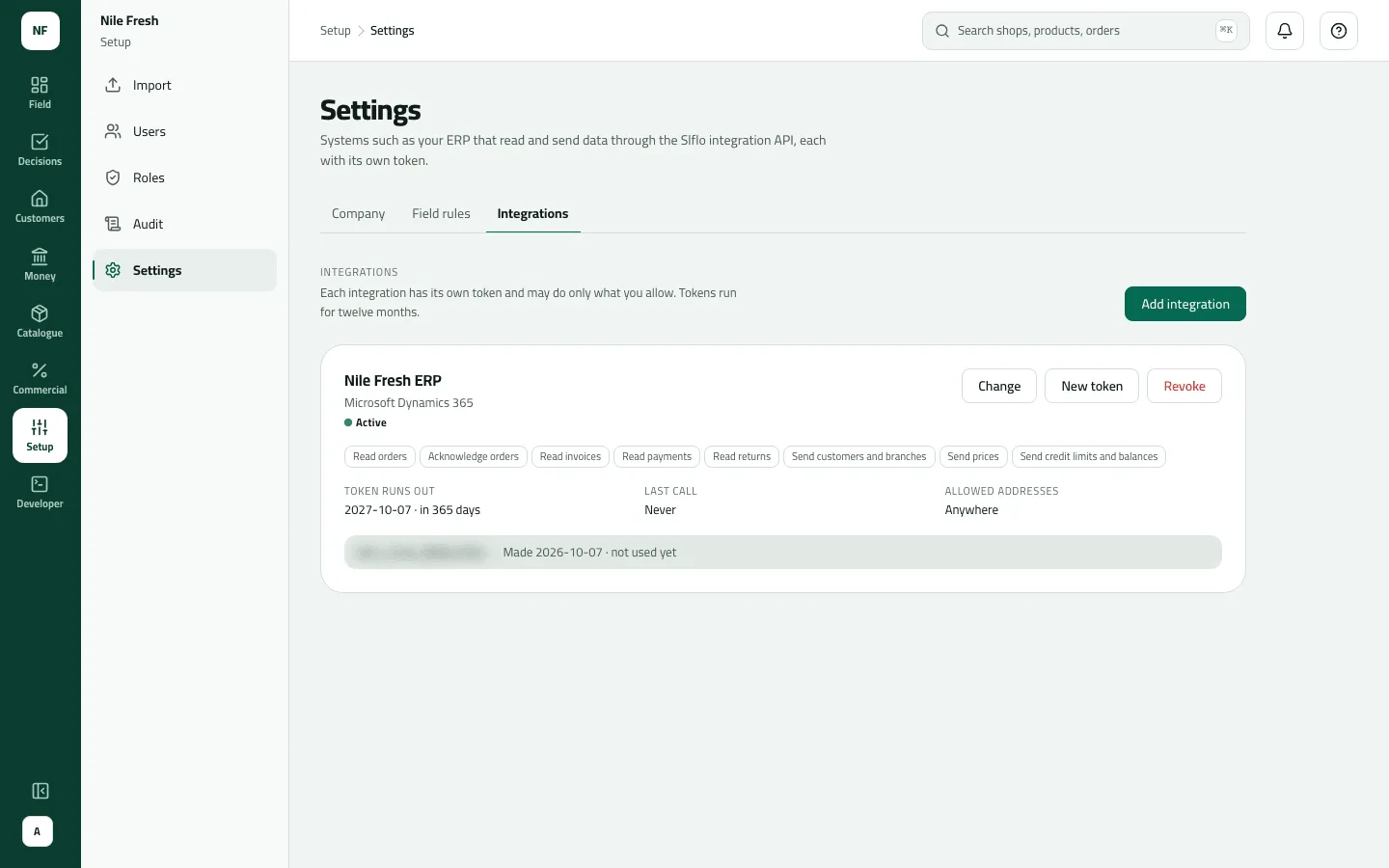
- State
- What it may do
- The token
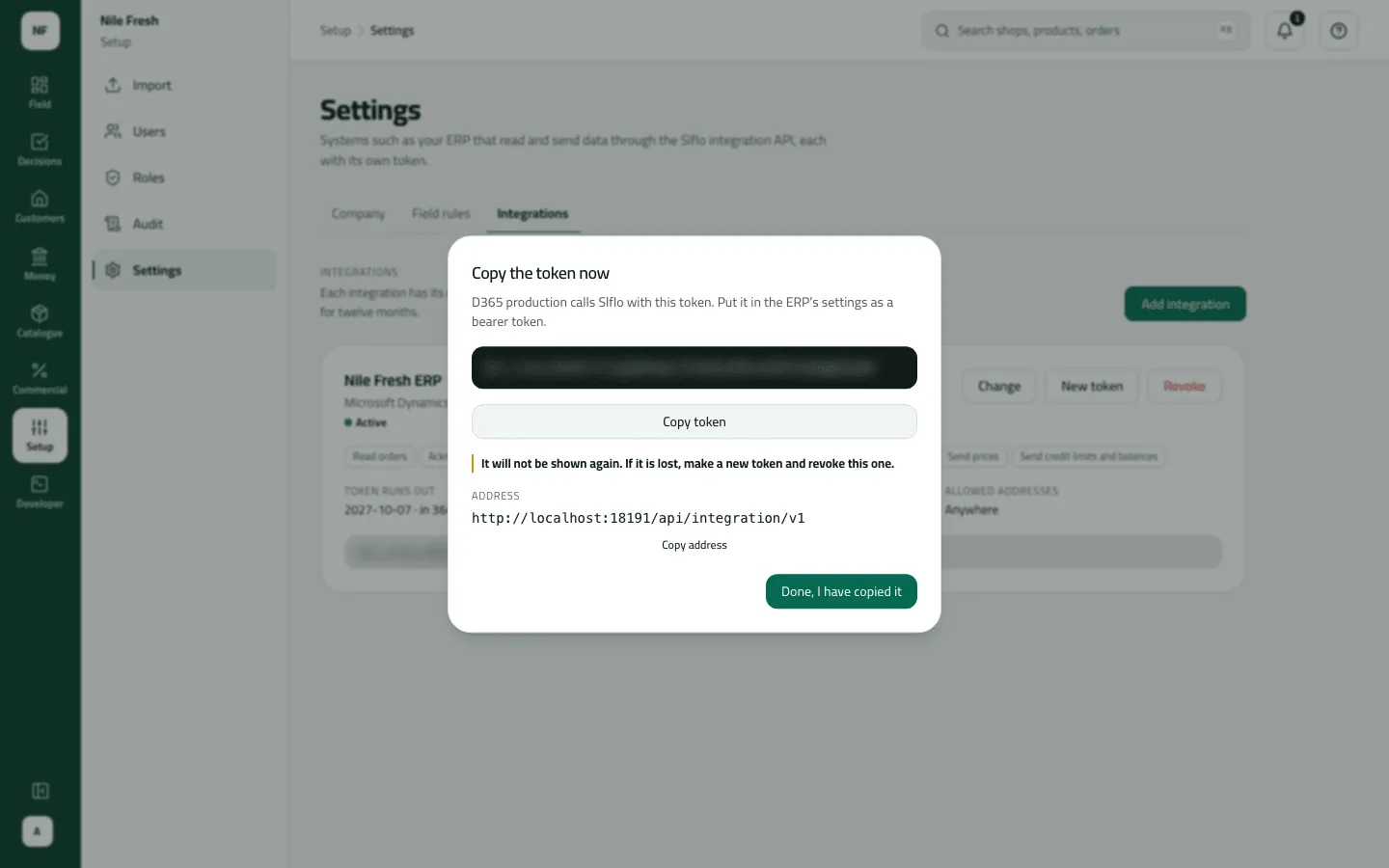
Change the token without stopping the ERP
Section titled “Change the token without stopping the ERP”Tokens run for twelve months. From 30 days before, the card says Token expiring and the bell shows “Integration tokens running out”.
- On the card press New token and copy it (an integration may have two live tokens).
- Put the new token in the ERP.
- Check that the new token’s line says last used with a recent time.
- Press Revoke this token on the old token’s prefix.
To cut an integration off for good, press Revoke on the card; every token is refused from its next call. Change edits the name, permissions and addresses.
Example
Section titled “Example”Nile Fresh adds “D365 production”, Microsoft Dynamics 365, with Read orders, Acknowledge orders, Read invoices, Read payments and Read returns, allowed from 203.0.113.0/24. The token is shown once and pasted into Dynamics. Eleven months later the card reads “Token expiring — in 21 days”: they press New token, paste it into Dynamics, see “last used” move to the new token, and Revoke this token on the old one.
What happens next
Section titled “What happens next”- The ERP can call the integration API from now on, within what you ticked.
- Changes apply from the ERP’s next call. Every change is in the audit trail.
If something goes wrong
Section titled “If something goes wrong”| What you see | What to do |
|---|---|
The token was lost | It can't be shown again. Make a New token, put it in the ERP, then revoke the old one. |
This integration already has two live tokens. Revoke the one the ERP no longer uses, then make a new one. TOO_MANY_CREDENTIALS | Two live tokens already. Revoke the one the ERP no longer uses, then make a new one. |
Another integration already has this name. Choose a different one. INTEGRATION_NAME_TAKEN | Choose a different name. |
Enter each allowed address as an IP address or a block such as 203.0.113.0/24, at most 20. INTEGRATION_IP_INVALID | Write each address as an IP or a block such as 203.0.113.0/24, at most 20. |
That integration was revoked and cannot be changed or given a new token. Create a new one instead. INTEGRATION_CLIENT_REVOKED | A revoked integration can't be changed. Add a new one. |
Calls from this address are not on the integration's allowlist. Add the address in Settings → Integrations. IP_NOT_ALLOWED | (The ERP sees this.) Add the ERP's address under Allowed addresses. |
This integration is not allowed to do that. Add the missing permission to it in Settings → Integrations. SCOPE_MISSING | (The ERP sees this.) Tick the missing permission with Change. |
This integration token has expired. Create a new one in Settings → Integrations and update the ERP. TOKEN_EXPIRED | (The ERP sees this.) Make a new token and put it in the ERP. |