

Propose a new shop
Found a shop that should buy from you? Propose it from the phone. “The office approves it before you can sell there.” Who: rep · Where in the cycle: Visit.
Before you start
Section titled “Before you start”- Stand at the shop’s door: the phone records where you are as the shop’s pin.
- On Shops, tap New. New shop opens and starts reading your location.
- Choose A new customer, or A new branch of a customer you already serve — then pick it under Branch of (“Uses Nile Trading’s credit and prices unless the office changes it.”).
- Type the Shop name (or Branch name). It is the only required field.
- Add what you know: Name in Arabic (optional), Contact (optional), Phone (optional), Address (optional), Note for the office (optional).
- Wait for the location card: Location taken here · accurate to 8 m · stand at the door. If the phone can’t find you, tap Skip — the office then sees it without a pin.
- Tap Send to the office. The phone says “Sent to the office for approval”.
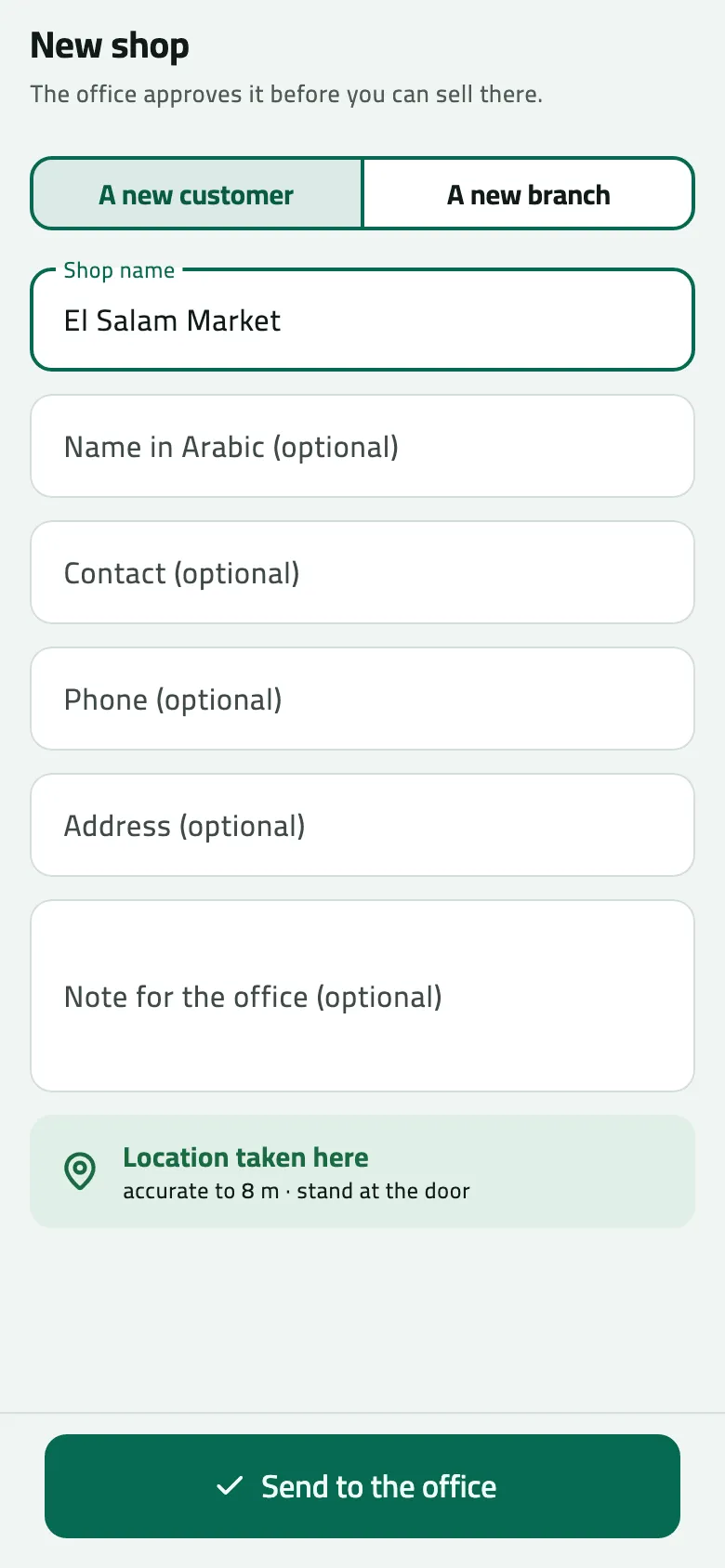
- A new customer or a new branch of one
- Shop name
- Where the phone is: the shop's pin
Example
Section titled “Example”Omar finds “El Salam Market” at the corner of Delta Kiosk’s street. He taps New, types the name and the shopkeeper’s phone, waits for the location and taps Send to the office. Shops lists it with Waiting for approval. The office approves it; after the next sync the pill reads Approved. Details arrive with the next sync. and then it becomes an ordinary shop on his route.
What happens next
Section titled “What happens next”- At once: the shop is on Shops as Waiting for approval. You can open it, but Check in is grey: “The office hasn’t approved this shop yet. You can visit it and sell once they do.”
- The office decides (Approve a shop a rep found). You see the answer at your next sync.
- Approved: the shop arrives with its code and details at the next sync. By default the office puts it on your route, every week; it appears on Today from the day they chose.
- Declined: the shop shows Declined and “The office declined this shop: …” with the reason. Tap Remove from my list.
If something goes wrong
Section titled “If something goes wrong”| What you see | What to do |
|---|---|
Could not save the shop. Try again. | Tap Send to the office again. |
No customers to add a branch to yet | Your phone has no customers yet. Propose A new customer instead, or pull down on Today first. |
No location — the office sees it without a pin | The office will place the pin. Next time, wait at the door for the location. |