

Create a route
Five steps, saved as a draft as you go; Create route makes it live and its day plans appear. Who: administrators and supervisors with Manage people · Where in the cycle: Plan.
Before you start
Section titled “Before you start”- You need Manage people (USER_MANAGE).
- The rep is on a round; the branches exist with pins.
- Pin the warehouse if you want Shortest path to start there (warehouses).
- Open Customers › Routes and press New route.
- Details — Route name, Name in Arabic, Code (suggested from the name), Worked by (or No rep yet), Starts on (today up to 180 days ahead; next Saturday by default), and how strict: the visiting order (Strict / Suggested / Company default) and shops not on this route (Allowed / With a reason / Not allowed / Company default). Press Next: branches → — the route is now saved as a draft.
- Branches — search, filter or draw round branches on the map to pick them.
- Visit days — give each branch its days and how often (Every week, Every 2 weeks, weeks 1 and 3, Once a month). A branch’s closed days are greyed out.
- Order — for each day, drag the stops into order, or press Shortest path (from the warehouse pin).
- Review — the rep, start, branches, rules, The week, Next 4 weeks and Check these (heavy days, branches with no pin). Press Create route.
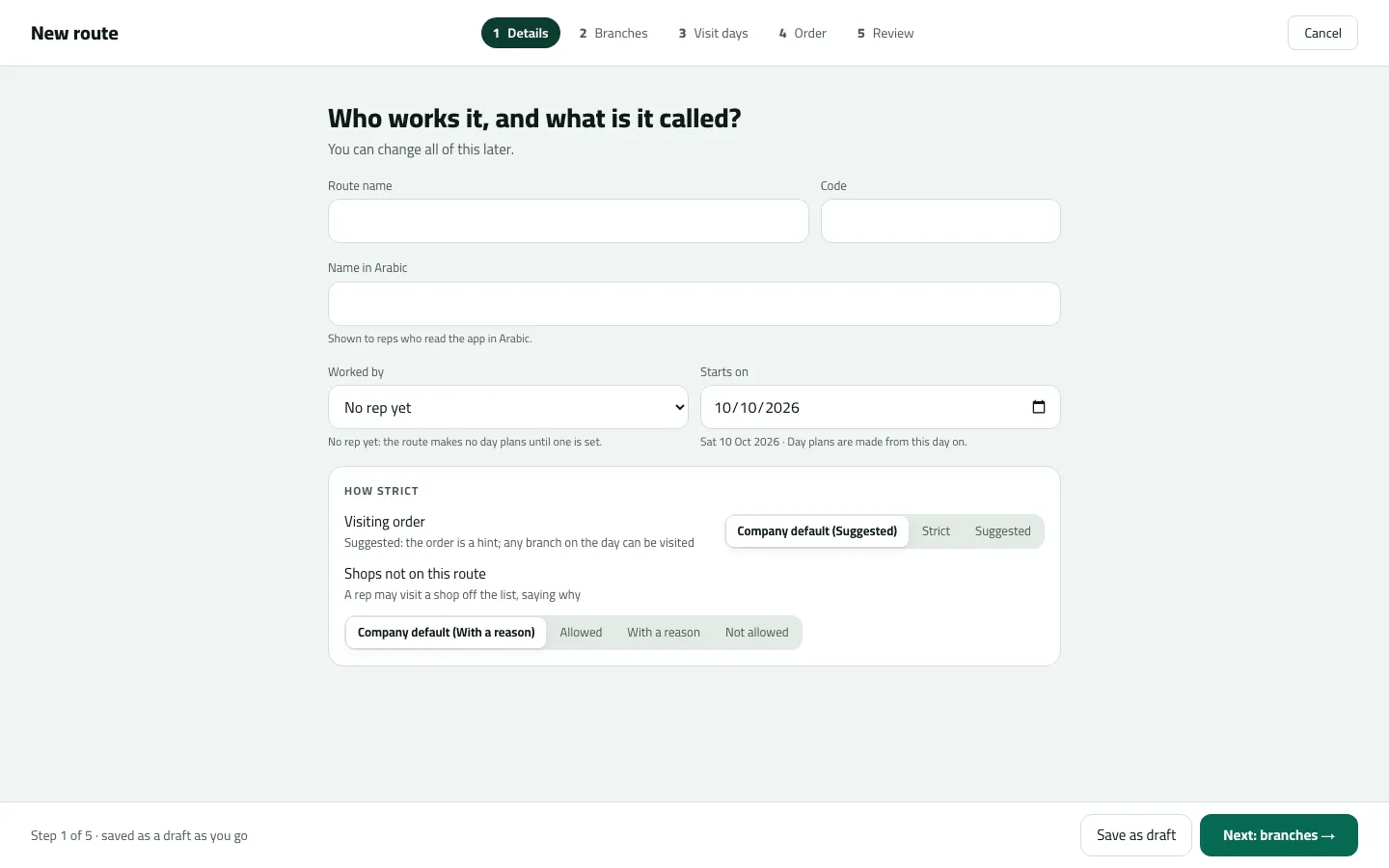
Step 1, Details. Next: branches saves the route as a draft.
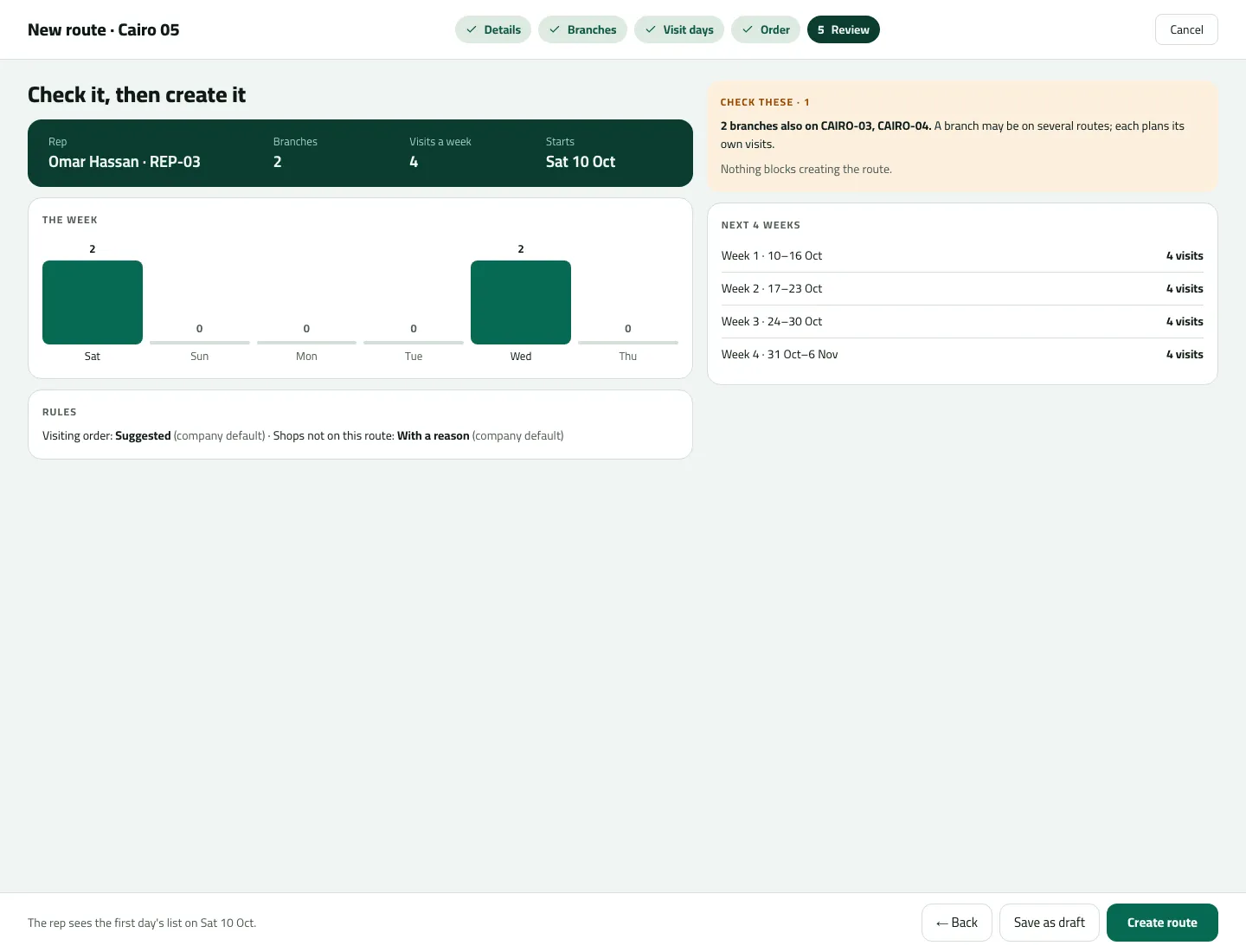
- The week
- Check these
A draft you leave can be finished later: open it from Routes and press Finish setting up.
Example
Section titled “Example”Nile Fresh creates CAIRO-03 “Cairo 3”, worked by REP-03, with Nile Market, Delta Kiosk, Zamalek Corner and Garden City Grocer on Saturday and Wednesday, every week. On Order they press Shortest path from MAIN. Review shows 8 visits a week; Create route. The day plans for the coming week appear at once, and on Wednesday Omar’s Today shows the four stops.
What happens next
Section titled “What happens next”- The route is Active. Day plans are made from its start date for the next 7 days at once, and kept a week ahead every hour.
- The rep’s phone gets the plan at its next sync.
- Recorded in the route’s History tab and the audit trail.
If something goes wrong
Section titled “If something goes wrong”| What you see | What to do |
|---|---|
Add at least one branch before activating the route. ROUTE_NEEDS_BRANCHES | Pick at least one branch. |
Give at least one branch a visit day before activating the route. ROUTE_NEEDS_DAYS | Give at least one branch a visit day. |
Another route already uses this code. Choose another code. ROUTE_CODE_TAKEN | Choose another code. |
This rep is not active. Choose an active rep. ROUTE_REP_INACTIVE | Choose an active rep, or No rep yet. |
Someone else changed this route. Refresh to see their change, then try again. ROUTE_VERSION_CONFLICT | Someone else changed the draft. Refresh, then go on. |
The rep cannot sell everything on the van at these branches | Some branches have no price for products on the van. Give them a price list in Customers. |
Branches I picked are gone when I come back | Picks without visit days are kept in this browser only. Give them days before leaving. |
The rep's phone still says No journey planned for today | The route starts later, today isn't one of its visit days, or the phone hasn't synced: pull down on Today. |