

Find and follow orders
Field › Orders lists every sales order — van sales and booked orders from the phones, and orders the office keyed in — with what became of each. Who: supervisors and office · Where in the cycle: Sell.
Before you start
Section titled “Before you start”- See reports (REPORT_VIEW) opens the list, for the reps your reach covers. An order outside it doesn’t appear at all.
- The row actions need more: Confirm and Delivered need Deliver orders (ORDER_FULFIL); Approve needs Approve orders (ORDER_APPROVE); Decline… needs Decline orders (ORDER_DECLINE).
What is on it
Section titled “What is on it”- The strip — always one day (today unless you pick one): Received, Value (before VAT), Average, Waiting and Declined.
- The sentence — “State: any · Day: any day · Rep: every rep”. Click a word to change it. The list itself starts on every day.
- The list — Order (SO-…), Shop, Rep, In (time received), Status and Total excl. VAT. A status can carry “over credit” (this order went over the limit when it was taken) or “over limit” (the customer now owes more than its limit).
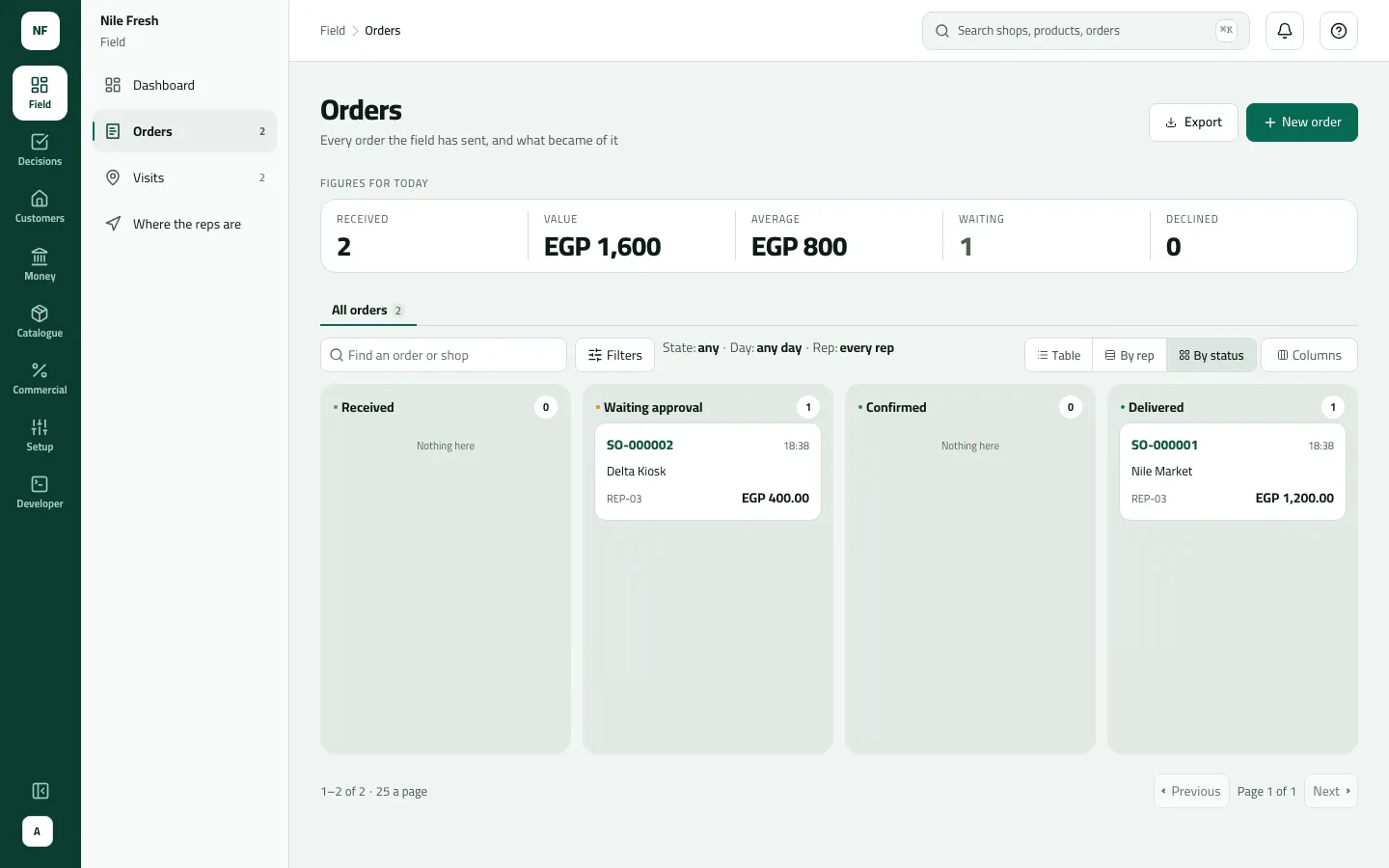
- Table / By rep / By status views (By status is the board), a Columns menu, Save this view, Export (CSV) and New order (Take a phoned-in order).
The order states:
| Status | What it means | What comes next |
|---|---|---|
| Received | Booked; nothing decided yet | Confirm |
| Waiting approval | Held over the credit limit or a discount | Approve or decline |
| Approved | Someone said yes | Confirm |
| Confirmed | The office is filling it | Delivered |
| Delivered | Every line arrived or was closed. A van sale is born Delivered | — |
| With ERP · Closed · ERP failed | Only when your ERP collects orders | The ERP answers; an ERP failed order has Send to ERP again |
| Cancelled · Declined | Stopped by the office or the rep; said no by an approver | — |
- Open Field › Orders. To see one day, click “any day” in the sentence and pick it.
- Find an order by typing its number or the shop’s name in the search box. A search looks at every day, whatever day is picked.
- Use the row’s ⋮ menu: Approve, Decline…, Confirm, Delivered or Open this order — only the steps that order allows.
- To move several at once, tick them and use the bar: “Confirm 3”, “Deliver 3”. Each order is tried on its own; refusals are listed afterwards.
- If your company has more than one warehouse, choose Leaves from in the bar before delivering.
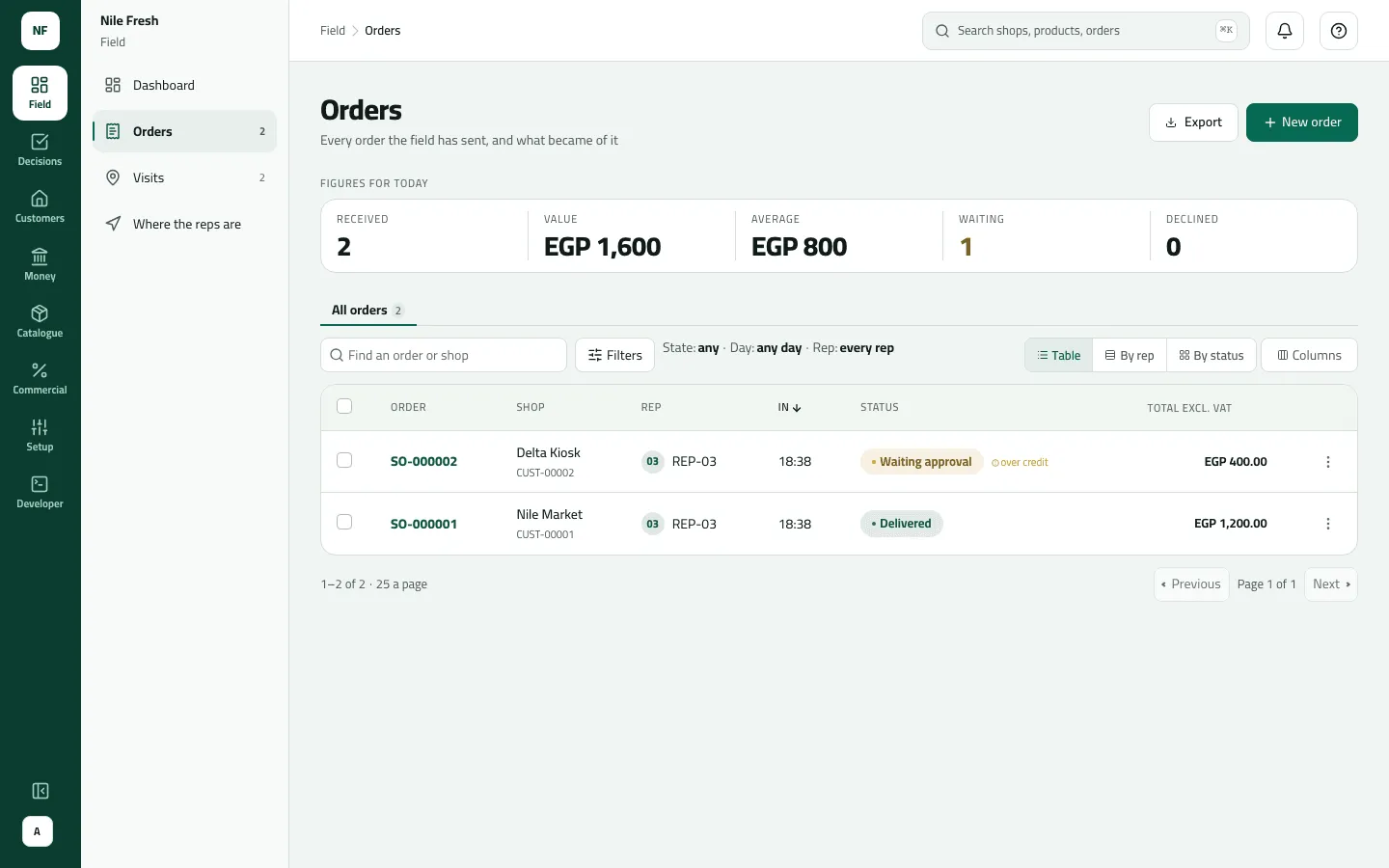
- Figures for today
- Sentence filters
- SO-000002, over credit
- Approve, decline or open
Cancelling isn’t on the list: open the order (Confirm, deliver or cancel an order).
Example
Section titled “Example”At 11:10 on the Nile Fresh day, Today shows two orders:
- SO-000001, Nile Market, REP-03, Delivered, 1,200.00 — the van sale at 09:35, born delivered with its invoice.
- SO-000002, Delta Kiosk, REP-03, Waiting approval “over credit”, 400.00.
The strip reads Received 2 · Value 1,600 · Average 800 · Waiting 1 · Declined 0 — before VAT, so 1,600 here is 1,824 on the dashboard.
Delta Kiosk wants 4 Juice 1L, 456.00 with VAT, on a 300.00 limit. The company asks for approval, so the order waits for the supervisor.
Sales order SO-000002 — status: pending approval · total: 456.00 · reason: credit limit exceeded (over 156.00)
| Item | Before | After | Change |
|---|---|---|---|
| Delta Kiosk credit limit | 300.00 EGP | 300.00 EGP | 0 |
| Order over the limit by | 0.00 EGP | 156.00 EGP | +156.00 |
- Nothing moves while the order waits: no stock, no invoice, nothing owed.
What happens next
Section titled “What happens next”- Approve / Decline — see Approve or decline a held order. Nothing moves.
- Confirm — the status changes; no stock is set aside.
- Delivered — a delivery (DEL-) and an invoice (INV-), stock out of the warehouse, and the customer owes the invoice. See Confirm, deliver or cancel an order.
- Phones: the rep sees the new status at the next sync, in Order updates on Today. Nothing is pushed to the phone.
- ERP: with an ERP that collects orders, approved and received orders go to it instead of waiting for Confirm.
If something goes wrong
Section titled “If something goes wrong”| What you see | What to do |
|---|---|
That step isn't possible for this order now. Refresh to see its current state. INVALID_TRANSITION | Someone moved the order first. Refresh to see its state. |
This order is no longer waiting for approval. Refresh to see what happened to it. NOT_WAITING | It was already decided, or the rep withdrew it. Refresh. |
You took this yourself, so someone else has to decide it. SELF_APPROVAL | You took this order yourself. Someone else decides it. |
Choose which warehouse the goods left from, then deliver again. STOCK_SOURCE_REQUIRED | Choose Leaves from in the bar, then deliver again. |
There isn't enough stock at that location. INSUFFICIENT_STOCK | The warehouse doesn't hold enough. Receive the goods first, or deliver what arrived from the order's page. |
An order vanished from the Board | The board has lanes for Received, Waiting approval, Confirmed and Delivered, plus Declined when an order was declined. Use the Table to see every state. |
I can't filter on With ERP or ERP failed | Those states aren't in the State filter yet. Sort by Status in the Table instead. |
The exported Status column shows codes like SERVER_ACCEPTED | The CSV uses the stored codes: SERVER_ACCEPTED is Received, PENDING_APPROVAL is Waiting approval. |