

Get a new rep on the road
Five things in the console, then the rep signs in on the phone and sees the day’s stops. Who: an administrator (or anyone with Manage people) · Where in the cycle: Set up and Plan.
Before you start
Section titled “Before you start”- You hold Manage people (USER_MANAGE) — it opens Users and Routes — and Manage roles (ROLE_MANAGE) to hand out roles. The built-in Administrator has both; the built-in Supervisor has neither.
- The customers the rep will visit exist, with a price list and a map pin (Add or change a customer).
- Their supervisor is on a round as Team lead, so you can pick them under Reports to (Put someone on a round).
- For a van rep, a warehouse exists (Add a warehouse) and holds the goods to load (Receive goods).
- The console has no download link for the phone app: if you don’t have the Android app yet, ask the people who run Slflo for it.
- Invite them with a temporary password. Setup › Users › Invite someone. Type the Name, check the Username, choose Temporary password under How they get in, and tick the Sales Representative role. Press Create and invite. Write down the block “Company / Username / Password” — it is shown once — and press Done. (Invite people and manage accounts)
- Put them on a round. On the same person’s row menu choose On a round. Type the Rep code, keep Job on Seller, leave Sells from a van on for a van rep, type the Van code, and pick who they Reports to. Press Put on a round. (Put someone on a round with a van)
- Give them a route. Customers › Routes › New route: name it, choose the rep under Worked by, pick the branches, give each its visit days, set the order, and press Create route on the Review step. (Create a route)
- Load the van (van reps). Catalogue › Stock › Move stock › Load a van — see Load a van. If your field rules ask reps to accept the load, van sales wait until the rep accepts it on the phone.
- Hand over the sign-in. The rep installs the app and types the Company code (if the app asks), Username and the temporary password, then Set your own password. Today opens on the day’s stops (Install the app and sign in).
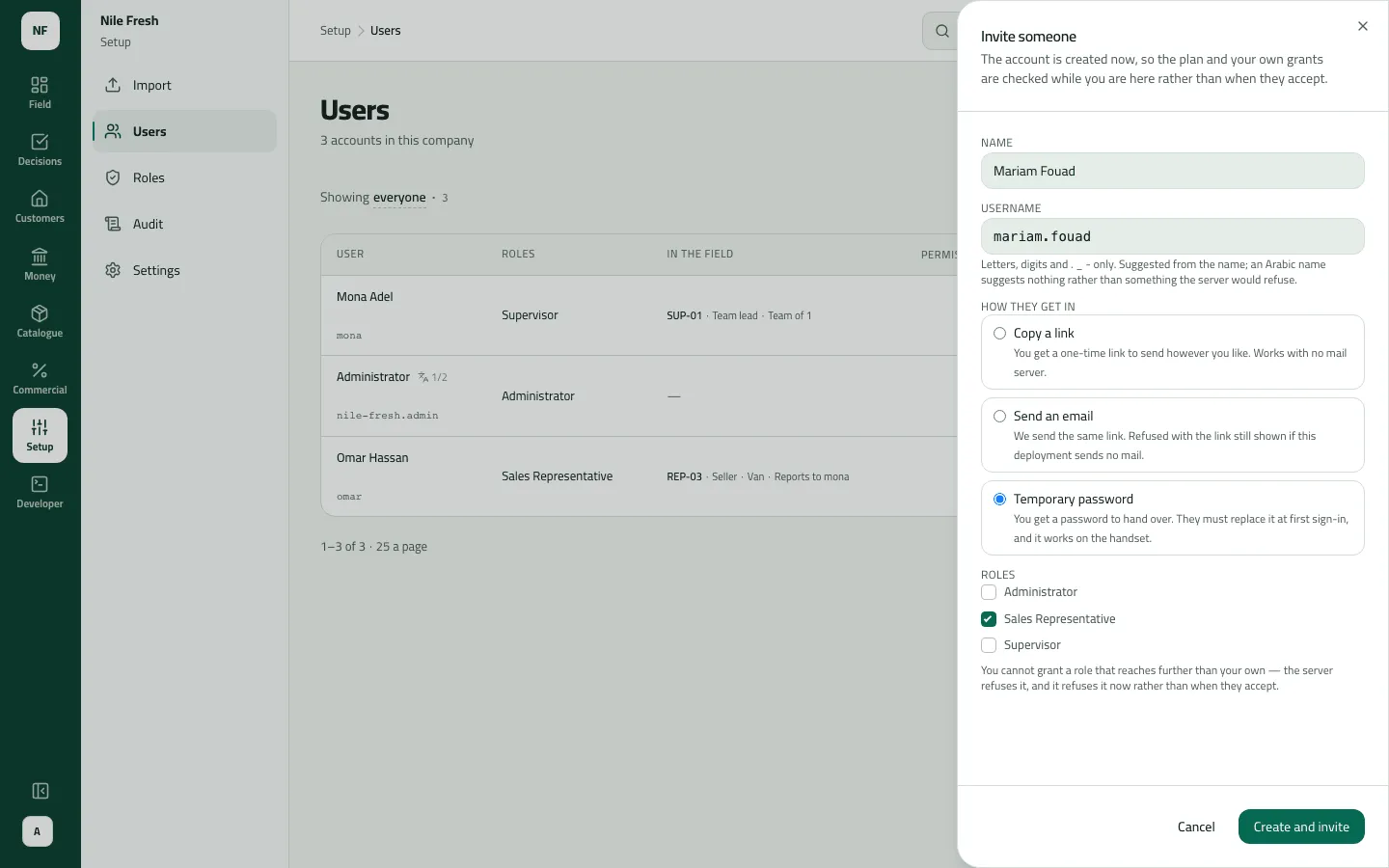
- Temporary password
- Sales Representative
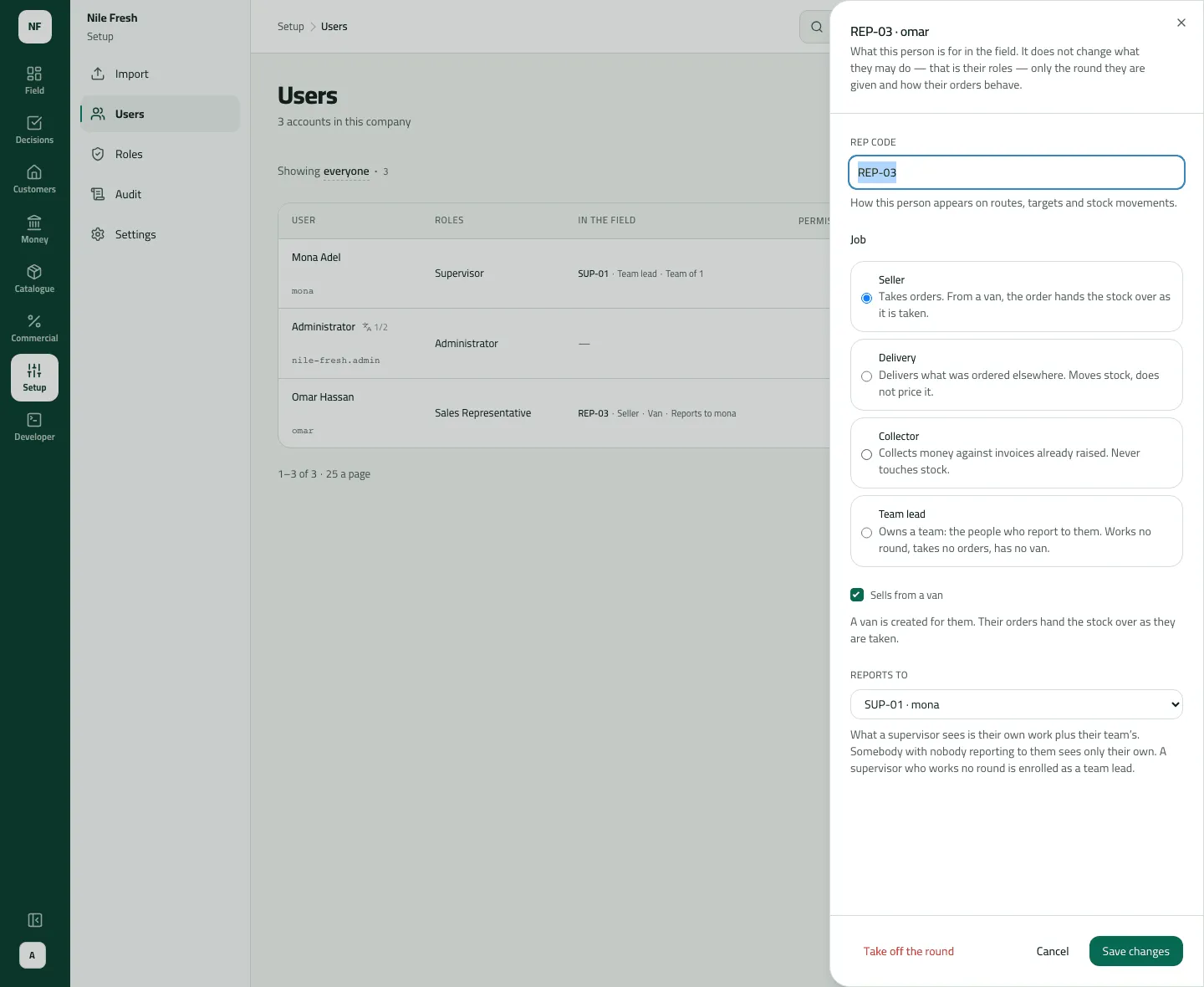
Omar’s sheet once his van exists: the Van code field shows only while a van is being added.
- Rep code
- Job
- Sells from a van
- Reports to
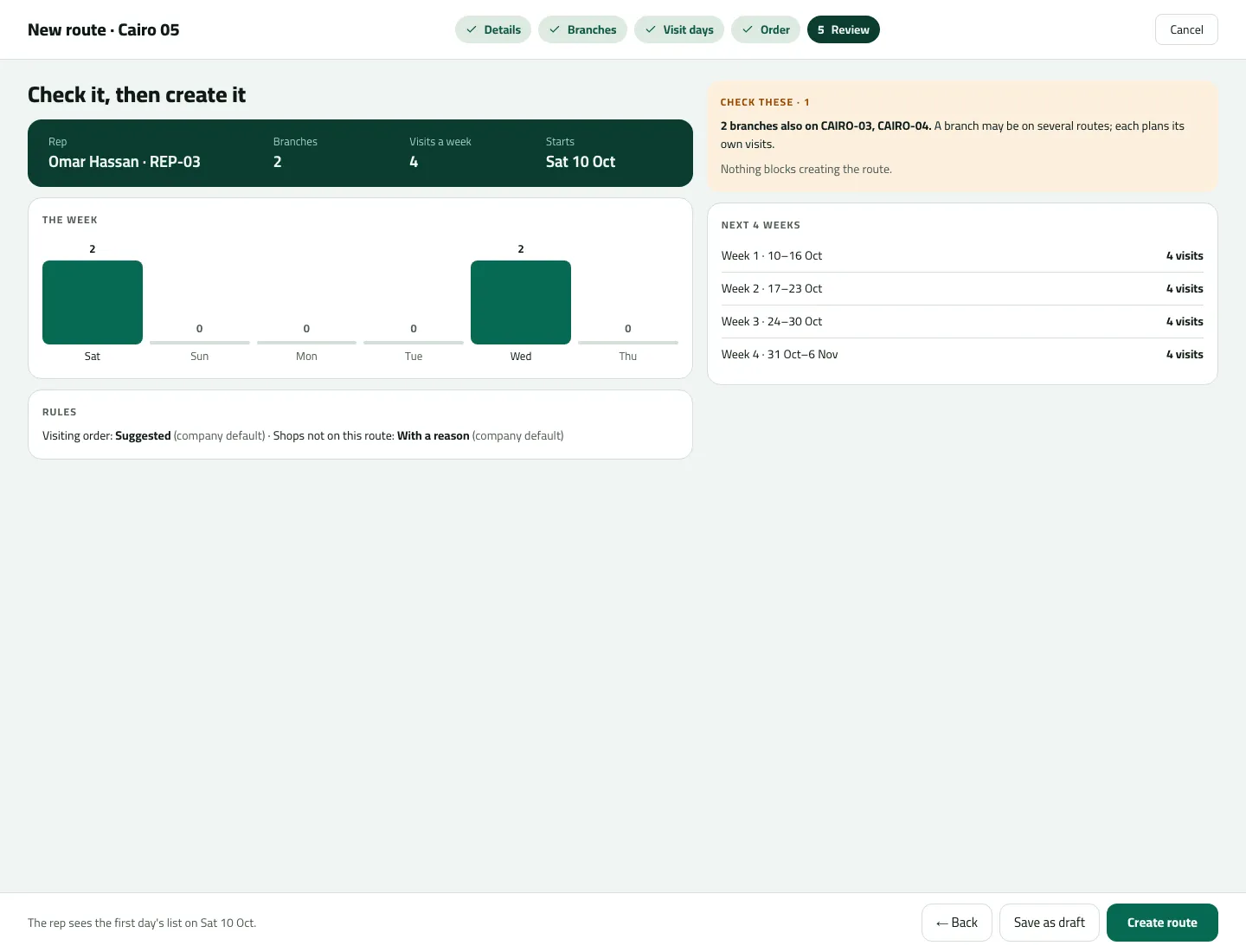
- The week
- Check these
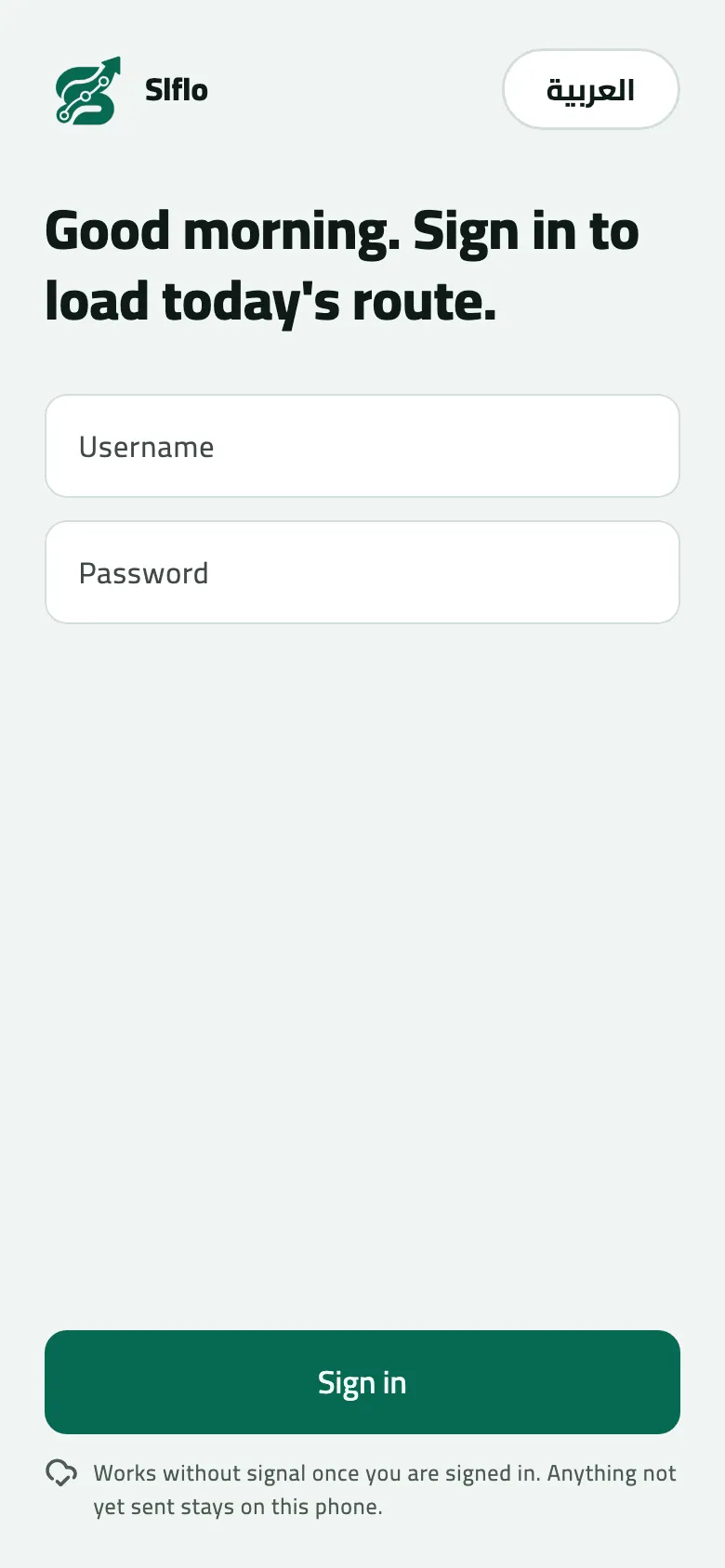
- Switch the app between English and Arabic
There is no “make today’s plan” button. Slflo makes each rep’s day plans by itself: every hour (at minute 10) for today and the next 7 days, and at once whenever a route is saved.
Example
Section titled “Example”The Nile Fresh administrator invites Omar Hassan, changes the suggested username to omar,
chooses Temporary password and the Sales Representative role. The result block reads
Company nile-fresh, Username omar, and the password. On On a round she types Rep code
REP-03, Seller, Sells from a van, Van code VAN-03 (left blank it would be VAN-REP-03),
Reports to SUP-01. The notice says “omar works a round as REP-03, with a van”. She creates
route CAIRO-03 for REP-03 with the four shops on Saturdays and Wednesdays. Omar signs in on the phone with
nile-fresh / omar / the password, sets his own, and Today shows 4 stops.
What happens next
Section titled “What happens next”- Omar’s phone downloads his shops, products and prices at its first sync, and the day plan.
- His orders reach Orders; anything over a rule waits in Approvals for someone whose Approve orders reaches him — with the built-in Supervisor, the reps who report to them.
- A change to his role reaches an open app within an hour.
If something goes wrong
Section titled “If something goes wrong”| What you see | What to do |
|---|---|
No journey planned for today (on the phone) | Check, in this order: he is on a round; his route is created (not a draft) and has started; one of his branches has today as a visit day; then pull down on Today. Plans are made at minute 10 of every hour; saving the route makes them at once. |
Incorrect username or password (on the phone) | If he was invited by link or email, that sign-in doesn't work on the phone. Use Users › Reset password to give him a temporary password. Otherwise check the company code. |
Your account can't take orders. Ask your supervisor. NOT_A_SELLER | His job is not Seller. Open On a round and change the job. |
Your account isn't set up as a rep. Ask your supervisor. UNKNOWN_REP | He isn't on a round. Do step 2. |
Your company has no free phone slots. Ask an administrator to remove an old phone. DEVICE_LIMIT | Your plan's phone seats are used up. Ask the people who run Slflo to free an old phone's seat. |
You cannot give more than you have yourself: a permission you do not hold, a wider reach or a higher limit than yours. ESCALATION | You tried to give a role that includes more than you hold. Ask an administrator. |
Your company asks you to accept the van load before selling from the van. Check the load, or book the order for delivery. LOAD_NOT_ACCEPTED | Your company asks reps to accept the van load before selling. He checks the load on the phone first. |