

Create a company (platform)
Create a company and its first administrator in one go. Who: platform staff with Create companies (Support or Admin) · Where in the cycle: Set up.
Before you start
Section titled “Before you start”- You are signed in to the Platform console with an account that may create companies. Read-only staff see the button but are refused.
- Agree the company code with the customer: it can’t be changed later.
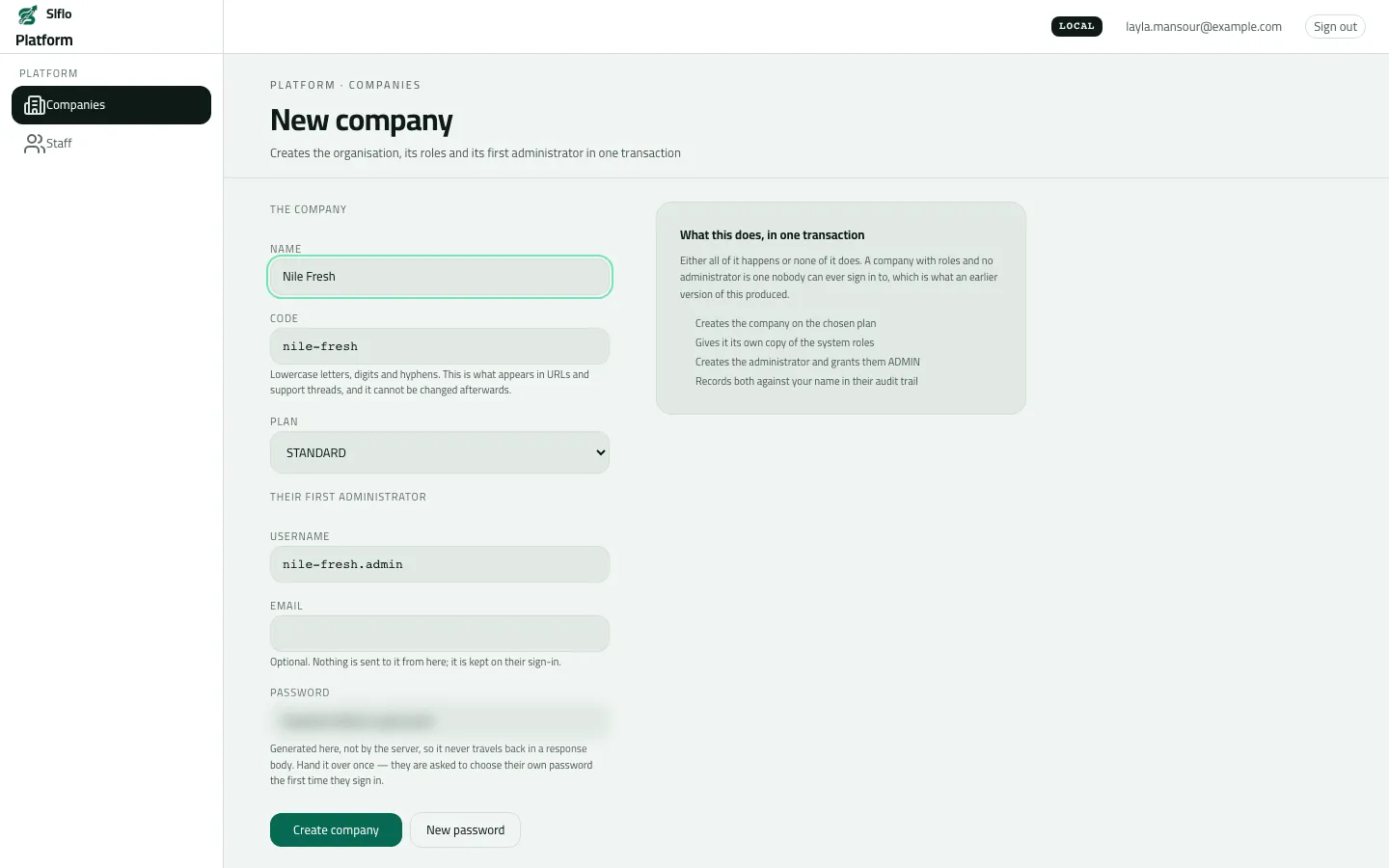
- On Companies, press New company.
- Name. The Code follows it (lower-case letters, digits and hyphens); change it if needed.
- Plan: FREE (5 users, 5 phones), STANDARD (100 users, 150 phones) or ENTERPRISE (no limit).
- Username of the first administrator (
code.adminby default) and, optionally, their Email (nothing is sent to it from here). - The Password is generated for you (20 characters); New password makes another.
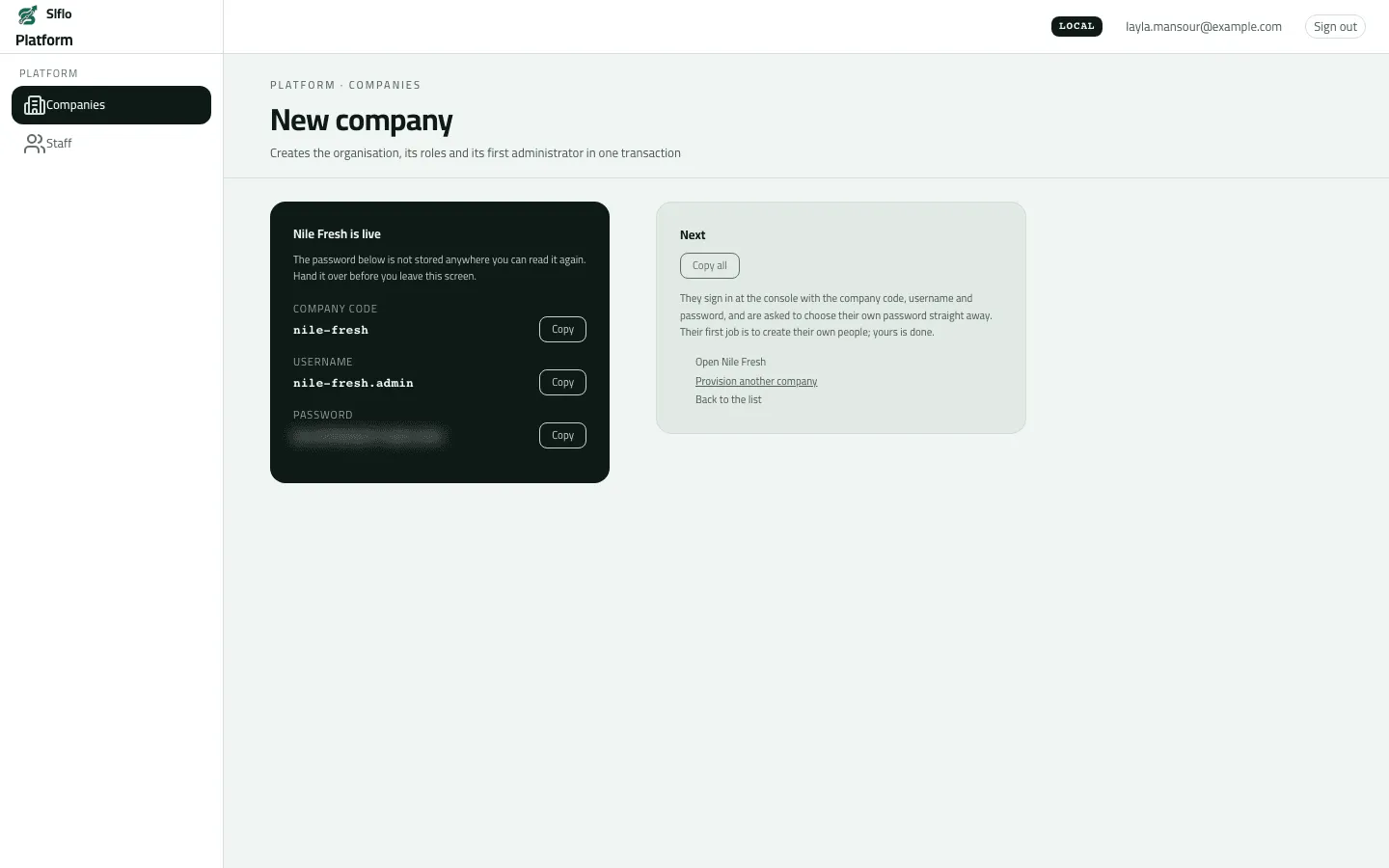
- Press Create company. The result screen “Name is live” shows the company code, username and password with copy buttons, and Copy all.
- Hand the three over before leaving the screen.
Example
Section titled “Example”Name Nile Fresh, code nile-fresh, plan STANDARD, username nile-fresh.admin. The
result screen shows the password once; it is handed to Nile Fresh’s administrator, who signs in by
the username door and is asked to Choose your own password. Companies now lists “Nile Fresh ·
nile-fresh · Active · STANDARD · 1 of 100 · 0 of 150”.
What happens next
Section titled “What happens next”- The company exists with the three built-in roles and its administrator, who must change the password at first sign-in (Sign in).
- The administrator follows Set up your company from nothing.
- The company’s own audit trail starts with “Company set up”.
If something goes wrong
Section titled “If something goes wrong”| What you see | What to do |
|---|---|
The password wasn't copied | It can't be shown again, and platform staff can't sign in to a company to reset it. Always copy it (Copy all) before leaving the result screen. |
Another record already has this code. Choose another code. DUPLICATE_CODE | A company already has this code. Choose another. |
That password is too short. Choose a longer one. WEAK_PASSWORD | Use the generated password. |
You do not have access to this. Ask your administrator if your work needs it. MISSING_PERMISSION | Your platform role can't create companies. Ask a platform admin. |