

Import customers, branches, products and prices
Load many records from a spreadsheet saved as CSV. Slflo checks the whole file first and imports it only if every row is right. Who: administrator · Where in the cycle: Set up.
Before you start
Section titled “Before you start”- Add and change customers (CUSTOMER_MANAGE) for the Customers and Branches tabs; Manage products and prices (CATALOG_MANAGE) for Products and Prices. Placing branches on routes also needs Manage people (USER_MANAGE).
- Import in this order: customers before their branches; units before products; products and price lists before prices.
- A route named in the file must already exist (a draft is enough) — create it on Routes first. Import can’t create routes.
- Save the file as CSV UTF-8, comma-separated, with a header row.
The columns
Section titled “The columns”The screen lists each tab’s columns with what to write. Column names ignore case, spaces and underscores.
| Tab | Required | Optional |
|---|---|---|
| Customers | name |
code, namear, creditlimit, currency, pricelist, latitude, longitude, geofenceradius, address, blocked, channel, paymentterms, deliverydays, contact, phone, opendays, area, route, visitdays, visitevery, effectivefrom |
| Branches | customer, code, name |
as customers, for that branch |
| Products | name, baseuom |
code, namear, category |
| Prices | pricelist, product, uom, unitprice, validfrom |
validto |
A blank cell keeps what is already stored. A code that exists updates that record, so a file
with codes can be imported twice without changing anything; a row without a code always makes
a new record, so importing it again makes duplicates. A new customer with a blank creditlimit
is cash only (0); write no limit for no limit. Days are written Sat Wed (or in
Arabic); visitevery is week, 2 weeks, weeks 1 3 or month.
- Open Setup › Import and pick the tab.
- Choose the CSV file.
- Press Check file. Nothing is saved yet.
- Read the result. Ready to import shows the counts (Rows, Would create, Would update, Unchanged), Routes this file touches and What each row does. Not imported lists each problem with its spreadsheet line.
- Fix the problem rows in your spreadsheet, save, choose the file again and Check file again.
- When the check is clean, press Import. It says “Done. Devices pick this up on their next sync.”
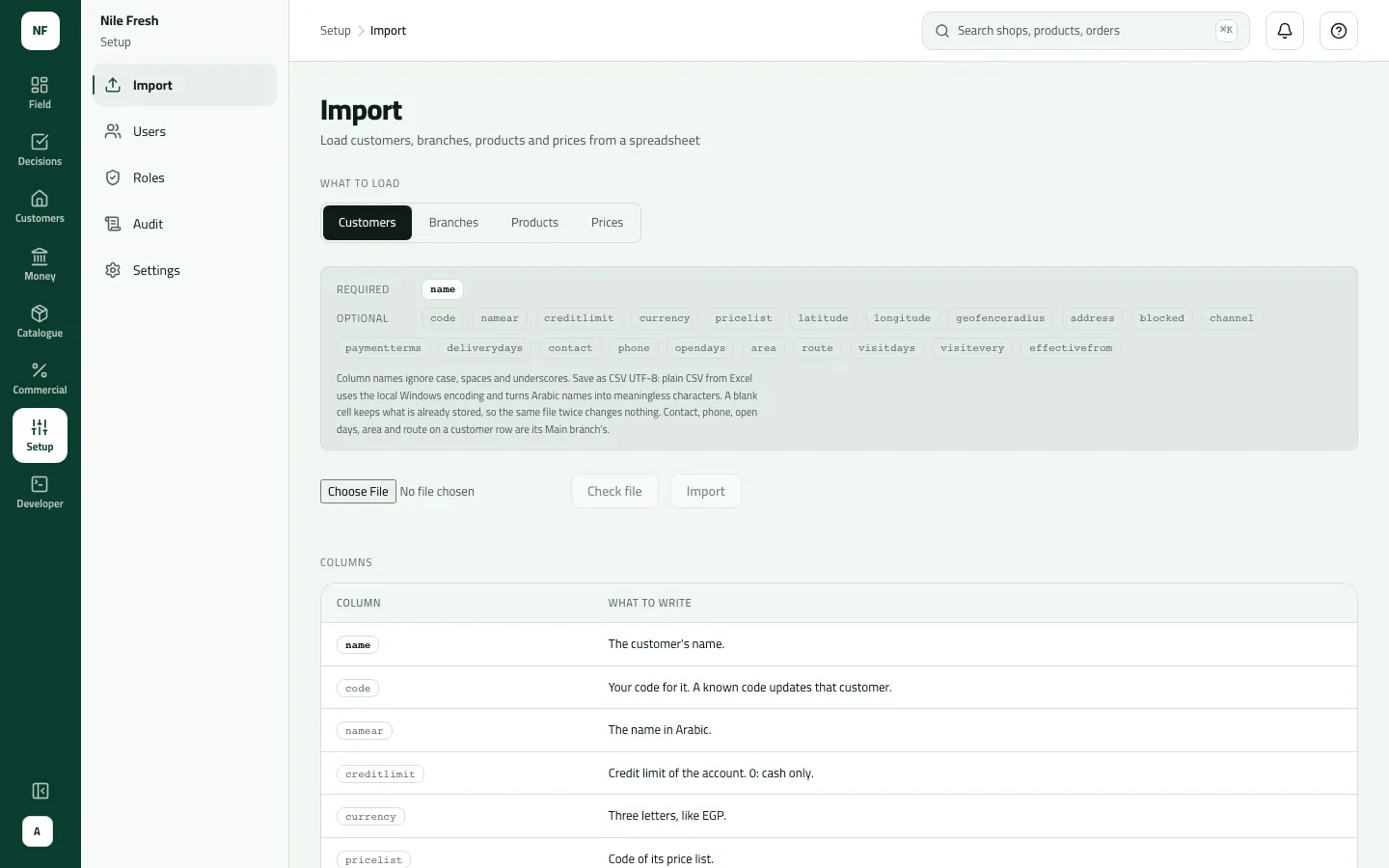
- What to import
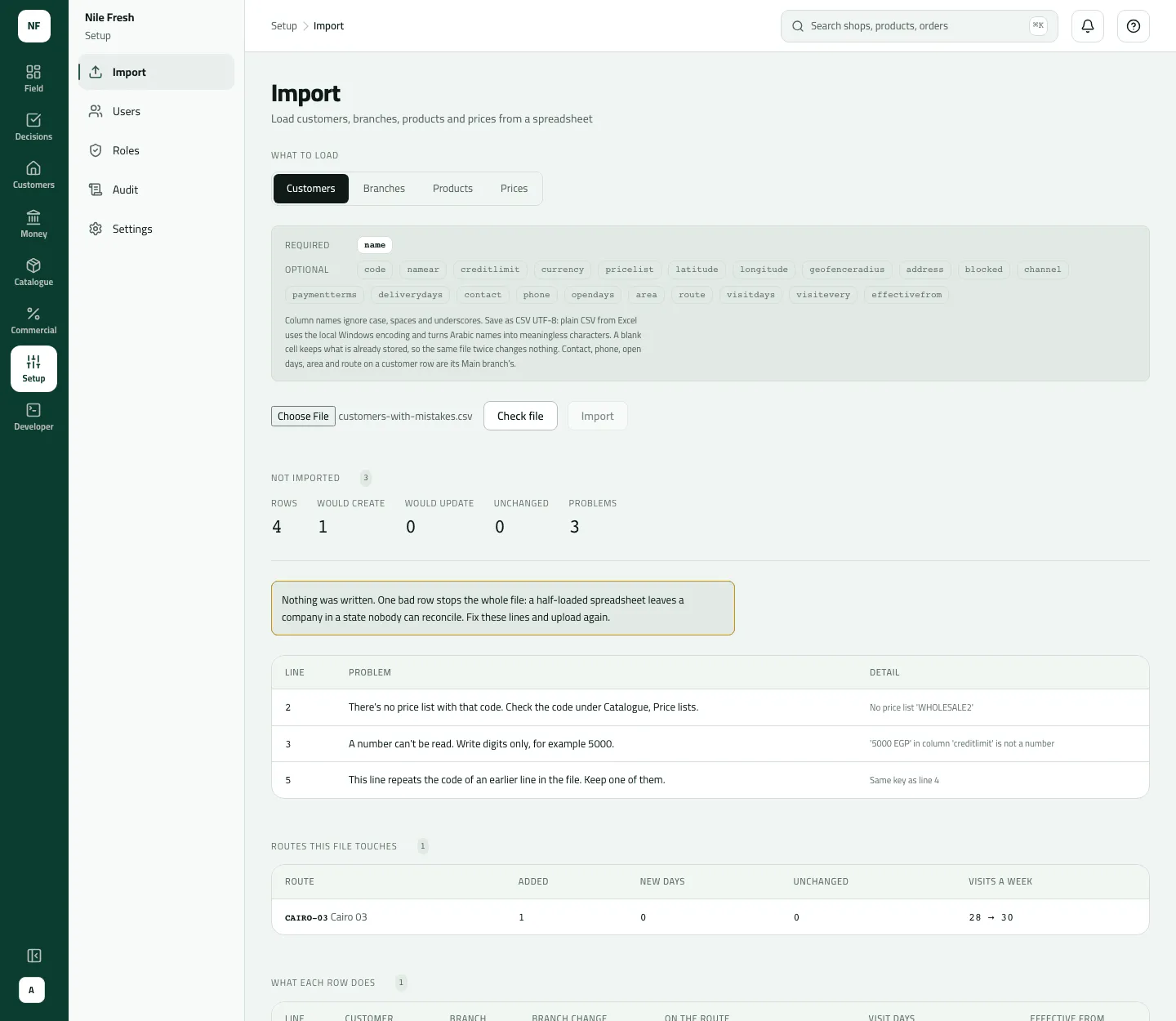
- Line
- Problem
- Detail
Example
Section titled “Example”Nile Fresh first saves route CAIRO-03 as a draft, then imports its four customers in one file:
name,creditlimit,pricelist,channel,geofenceradius,route,visitdays,visiteveryNile Market,5000,RETAIL,Retail,150,CAIRO-03,Sat Wed,weekDelta Kiosk,300,RETAIL,Retail,150,CAIRO-03,Sat Wed,weekZamalek Corner,3000,RETAIL,Retail,150,CAIRO-03,Sat Wed,weekGarden City Grocer,2000,RETAIL,Retail,150,CAIRO-03,Sat Wed,weekCheck file → Ready to import: Rows 4, Would create 4; Routes this file touches: CAIRO-03,
Added 4. Import → CUST-00001 to CUST-00004 are created, each with its Main branch on
CAIRO-03. (Add latitude and longitude columns to give them pins.)
What happens next
Section titled “What happens next”- Records are created or updated together, in one go; branches placed on routes get day plans from their date.
- Reps get the changes at their next sync.
- One audit row per imported file (“Imported a file”).
If something goes wrong
Section titled “If something goes wrong”One bad row stops the whole file: nothing is imported until every row checks clean.
| What you see | What to do |
|---|---|
There's no route with that code. Create the route under Routes first, then import again. UNKNOWN_ROUTE | Create the route on Customers › Routes first (a draft is enough), then check again. |
There's no customer with that code. Import the customers first, then their branches. UNKNOWN_CUSTOMER | Import the customers file before the branches. |
This line repeats the code of an earlier line in the file. Keep one of them. DUPLICATE_IN_FILE | Two lines have the same code. Keep one. |
A number can't be read. Write digits only, for example 5000. INVALID_NUMBER | Write digits only in number columns. |
The visit days can't be read. Write days like Sat Tue, and how often as week, 2 weeks, month or weeks 1 3. IMPORT_VISIT_PATTERN | Write the days like Sat Wed and how often as week, 2 weeks, weeks 1 3 or month. |
There's no price list with that code. Check the code under Catalogue, Price lists. UNKNOWN_PRICE_LIST | Use the price list's code, as on Catalogue › Price lists. |
Putting branches on routes needs the user-management permission. Ask an administrator, or leave the route columns empty. IMPORT_ROUTE_NOT_ALLOWED | Placing branches on routes needs Manage people. Leave the route columns blank, or ask an administrator. |
A required column is empty on this line. Fill it in and check the file again. MISSING | A required column is empty on that line. |
This file is split by semicolons… | Save it again as CSV UTF-8, comma delimited. |
That file could not be read | Save it as UTF-8 text. Very large files (around 1 MB and more) may be refused: split them. |
A removed customer came back | A code that belonged to a removed customer brings it back, with its history. Use a new code for a new shop. |
Catalogue-only users (without Add and change customers) don’t see Import in the menu; they open
it at /admin/import.