

Add a warehouse and set its pin
Vans are loaded from a warehouse, and routes start from its map pin. Who: administrator · Where in the cycle: Set up.
Before you start
Section titled “Before you start”You need Run the company (full access) (TENANT_ADMIN). Vans aren’t made here: each van comes with the rep who drives it (Put someone on a round).
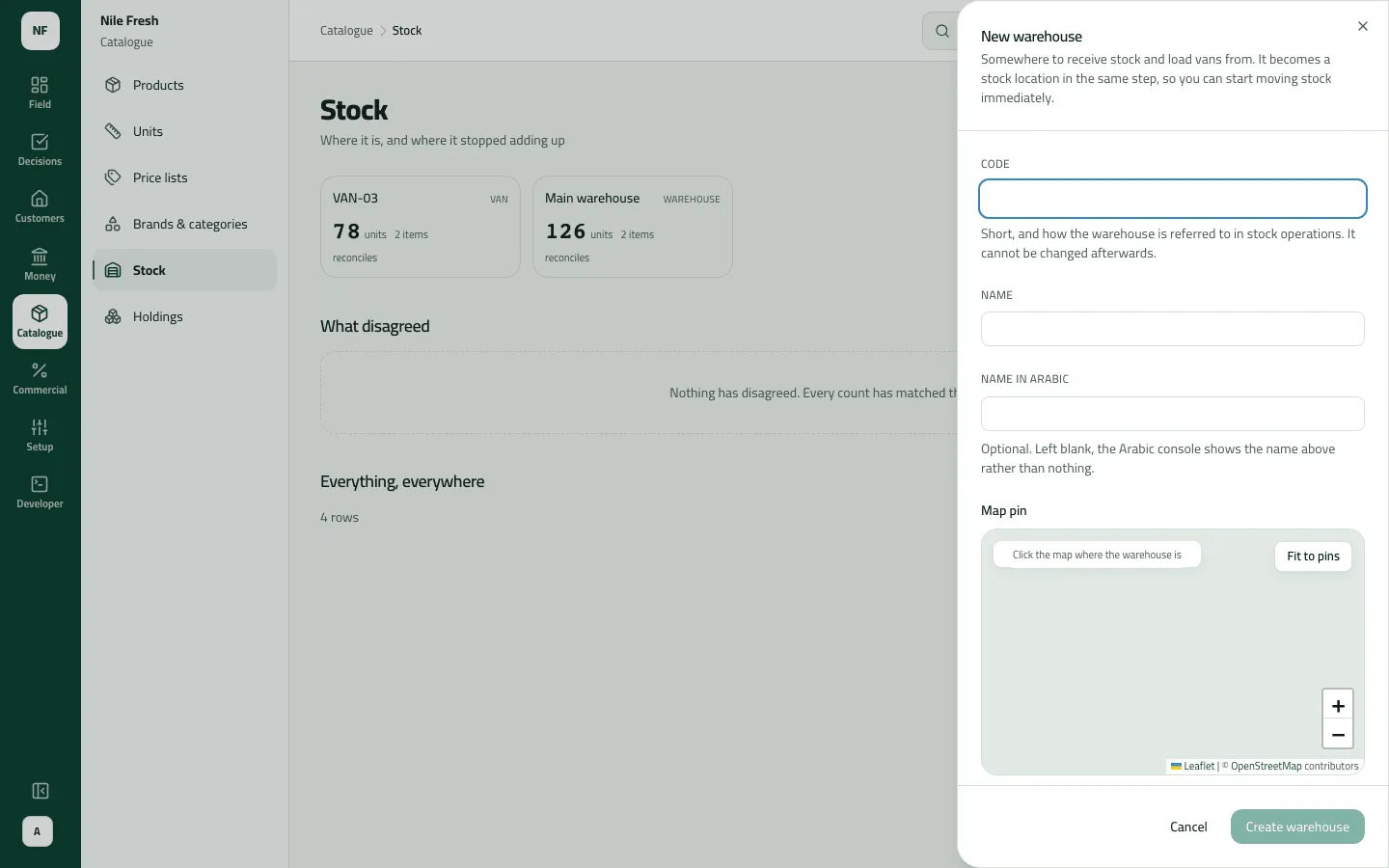
- Open Catalogue › Stock and press New warehouse.
- Type a Code (it can’t be changed later), a Name and, optionally, a Name in Arabic.
- Optionally place its Map pin on the sheet’s map now. Press Create warehouse. The notice says “code is ready to hold stock”.
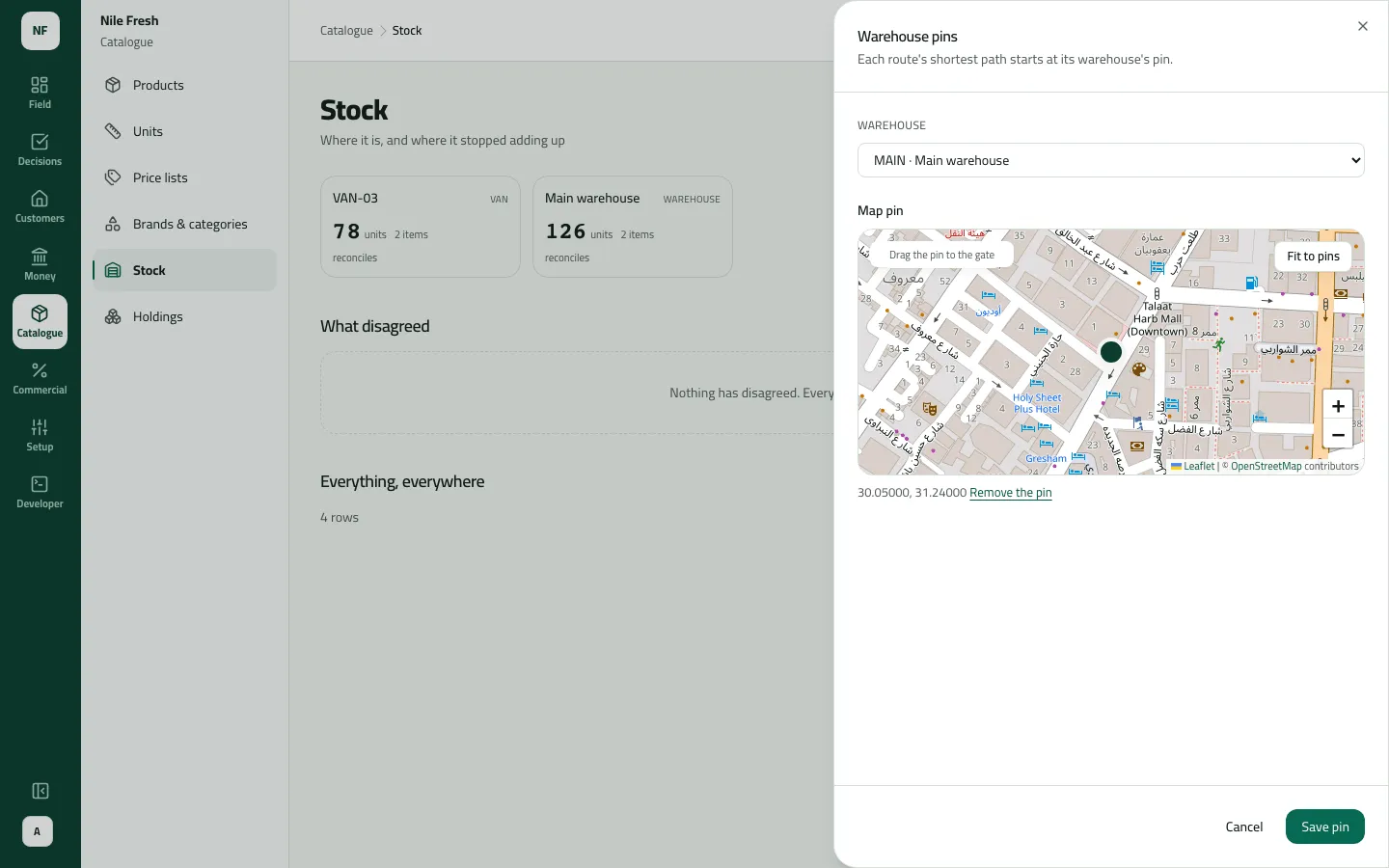
- To set or move the pin later, press Warehouse pins, pick the Warehouse, place the pin on the map and press Save pin.
Example
Section titled “Example”Nile Fresh adds MAIN, “Main warehouse”, and pins it at the depot. A held-back place for damaged or expired goods is made with it. When the route CAIRO-03 is ordered with Shortest path, the path starts at MAIN.
What happens next
Section titled “What happens next”- MAIN appears on the Stock strip as a place goods can come in to and vans be loaded from (Load).
- Returns of damaged or expired goods are held back, not sold again (Return).
- Recorded in the audit trail (“Added a warehouse”, “Set a warehouse’s pin”).
If something goes wrong
Section titled “If something goes wrong”| What you see | What to do |
|---|---|
A van or another stock location already has this code. Choose another code for the warehouse. LOCATION_CODE_TAKEN | A van or another place already uses this code. Choose another. |
Another record already has this code. Choose another code. DUPLICATE_CODE | Another warehouse has this code. Choose another. |
No warehouse pin yet: the path starts at the first stop. | Set the warehouse's pin; Shortest path then starts there. |