

Invite people and manage accounts
Everyone who signs in has an account here: invite them, give roles, and look after their access. Who: administrator · Where in the cycle: Set up.
Before you start
Section titled “Before you start”- You need Manage people (USER_MANAGE). To hand out roles you also need Manage roles (ROLE_MANAGE); without it new people start with no roles.
- You can’t give anyone more than you hold yourself.
- Every account counts against your plan’s user limit — suspended ones and invitations never accepted too.
The Users screen
Section titled “The Users screen”Setup › Users lists every account: User, Roles, In the field (e.g. “REP-03 · Seller · Van · Reports to sara.sup”), Permissions (how many), Status (Active, Suspended, Locked) and Last sign-in. Filter by status, search by name or username. Invitations waiting lists invitations not yet accepted, with Withdraw.
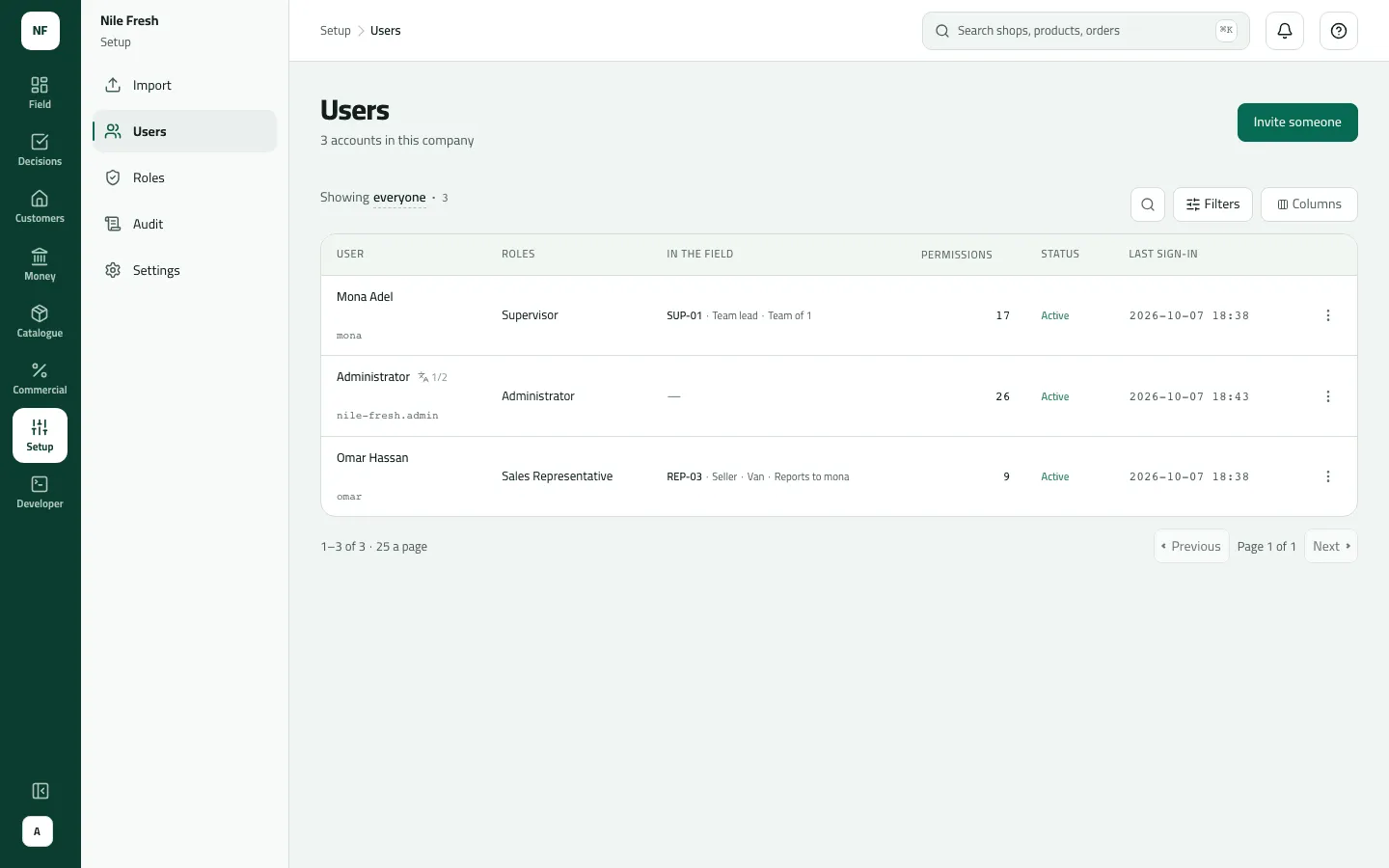
- In the field
- Status
- Row menu
Invite someone
Section titled “Invite someone”- Press Invite someone.
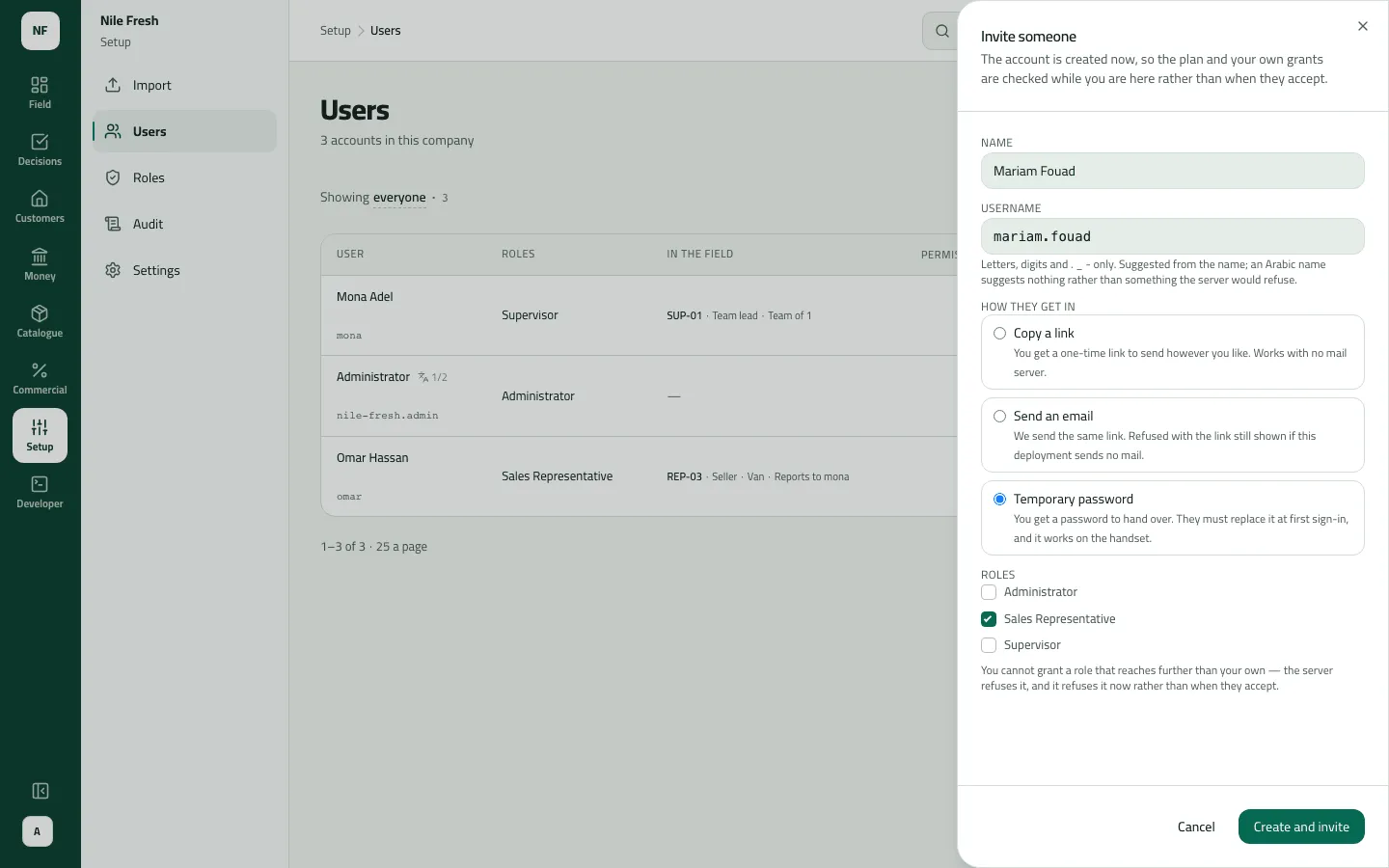
- Type the Name. The Username is suggested from it (letters, digits and
. _ -); change it if you like. - Under How they get in, choose:
- Copy a link — you copy a one-time link (good for 7 days) and send it yourself;
- Send an email — Slflo emails the link to the Email you type;
- Temporary password — you hand over company, username and password; they choose their own at first sign-in. The only one that works in the phone app.
- Tick the Roles.
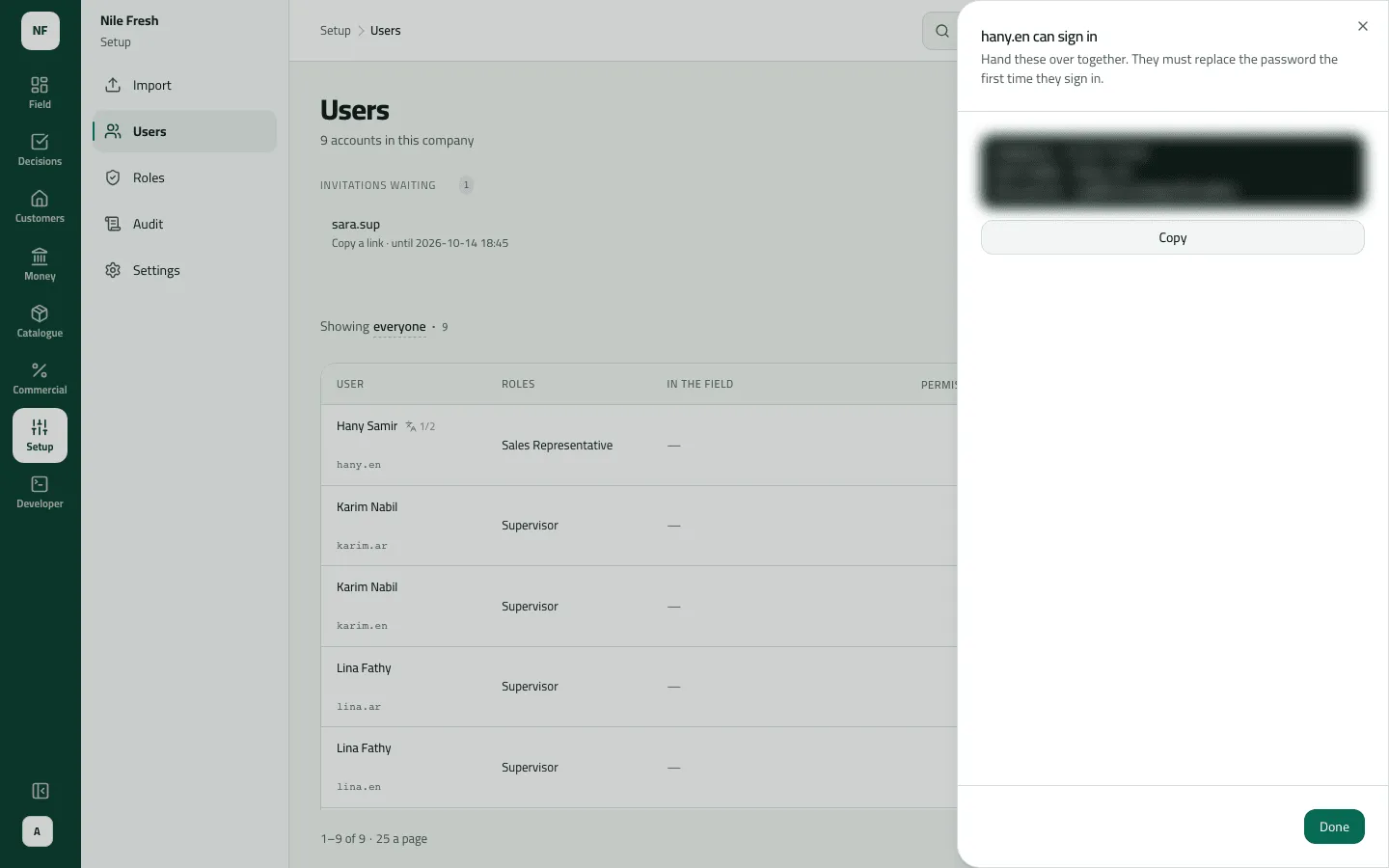
- Press Create and invite, copy what the result shows (it is shown once), then Done.
- Temporary password
- Sales Representative
Look after an account (row menu)
Section titled “Look after an account (row menu)”- On a round — make the person a rep (Put someone on a round).
- Roles — tick or untick roles; Save roles.
- Exceptions — give or take away one permission for this person (Give one person an exception).
- Reset password — Make a temporary password and hand it over; it also unlocks the account and signs them out everywhere. They choose their own at next sign-in.
- Suspend — signs them out and stops them signing in. Bring back lets them in again.
- Unlock — for a Locked account (10 wrong passwords in a row).
Example
Section titled “Example”Nile Fresh invites Omar Hassan with Temporary password and the Sales Representative role. The result block reads “Company: nile-fresh / Username: omar / Password: …”; the administrator hands it to Omar with his phone. A week later Omar types a wrong password ten times and his row shows Locked: the administrator uses Reset password (which unlocks too) and gives him the new temporary password.
What happens next
Section titled “What happens next”- An invited account exists at once; the invitation shows under Invitations waiting until it’s accepted, withdrawn or 7 days pass.
- Role changes, exceptions and suspensions reach people already signed in within an hour; a password reset signs them out.
- Every change is in the audit trail.
If something goes wrong
Section titled “If something goes wrong”| What you see | What to do |
|---|---|
The rep's phone refuses the password | Link and email invitations can't sign in on the phone. Use Reset password to give a temporary one. |
Invitation links are not switched on for this workspace yet. Choose a temporary password for now, and ask your Slflo contact to switch links on. LINK_NOT_CONFIGURED | Links aren't switched on for your workspace. Choose Temporary password. |
Email is not configured on this deployment. Use the copy-link route. | Choose Copy a link and send it yourself, or Temporary password. |
A refusal about the plan's user limit | Every account counts, suspended and never-accepted ones too. Ask the people who run Slflo about your plan. |
You cannot give more than you have yourself: a permission you do not hold, a wider reach or a higher limit than yours. ESCALATION | You tried to give a role or exception beyond your own grants. Ask an administrator. |
This person can do things you cannot, so only someone with at least their access can change this. OUT_OF_REACH | This person can do things you can't. Someone with at least their access changes it. |
You cannot suspend your own account. SELF_SUSPEND | Another administrator suspends your account. |
An email address is needed here. Enter one and try again. EMAIL_REQUIRED | Send an email needs the email address. |