

Find your way around the console
The rail on the side, the bar on top, and the screen. Your role decides which rows you see. Who: console users · Where in the cycle: —
Before you start
Section titled “Before you start”You are signed in. What you see depends on your roles: a menu row appears only when your role holds its permission.
The parts of the console
Section titled “The parts of the console”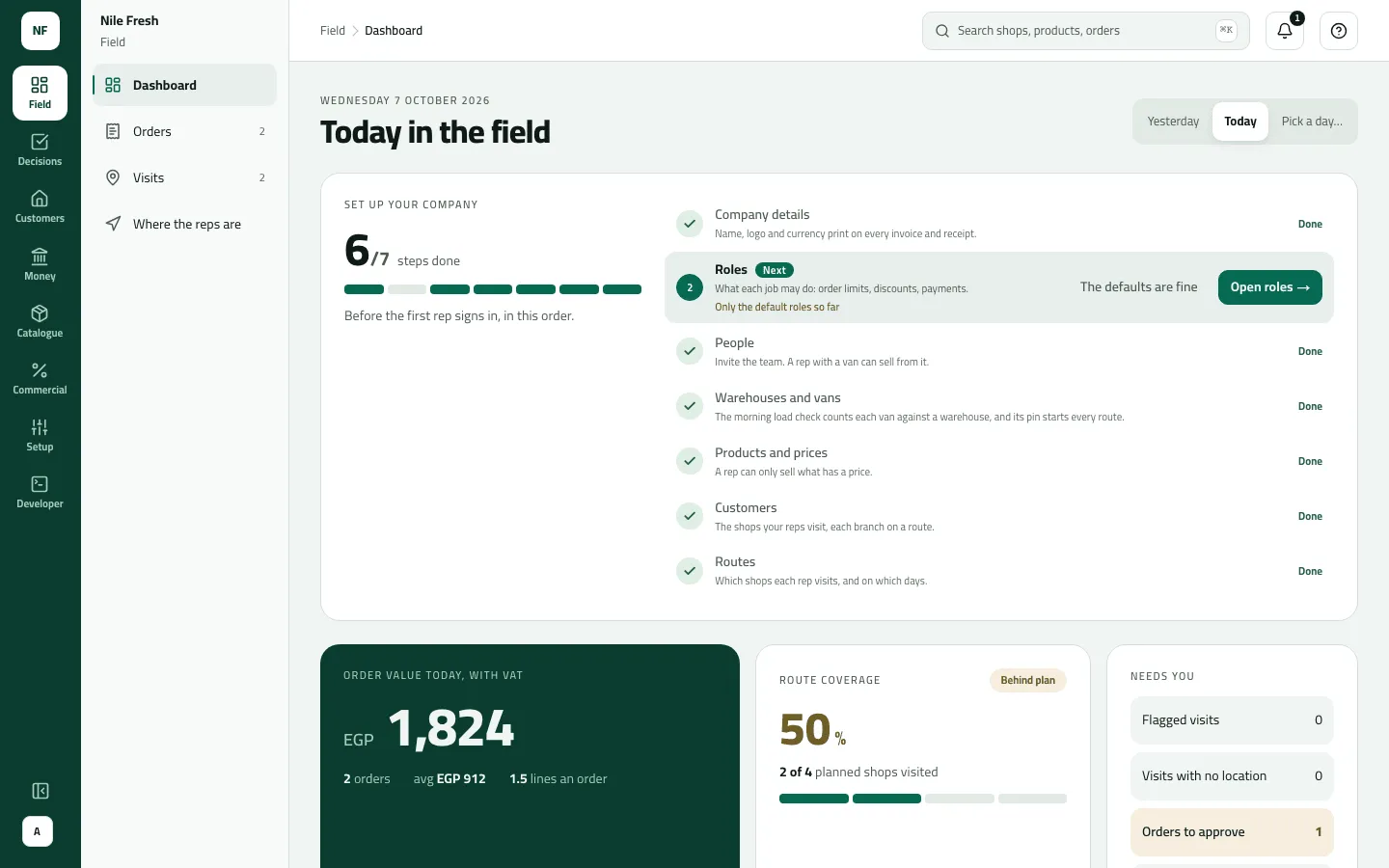
- Areas
- Screens of the area
- What is waiting
- Search
- Account and preferences
| Part | What it does |
|---|---|
| Rail, outer column | Your company’s name and logo at the top, one mark per area, and at the foot the profile menu. |
| Rail, inner pane | The screens of the open area. Orders and Visits show today’s counts. Click another area’s mark to look at its screens without leaving yours; hide the pane with Show/Hide the screen list. |
| Bar | Where you are (“Field › Dashboard”), the search button and the bell. |
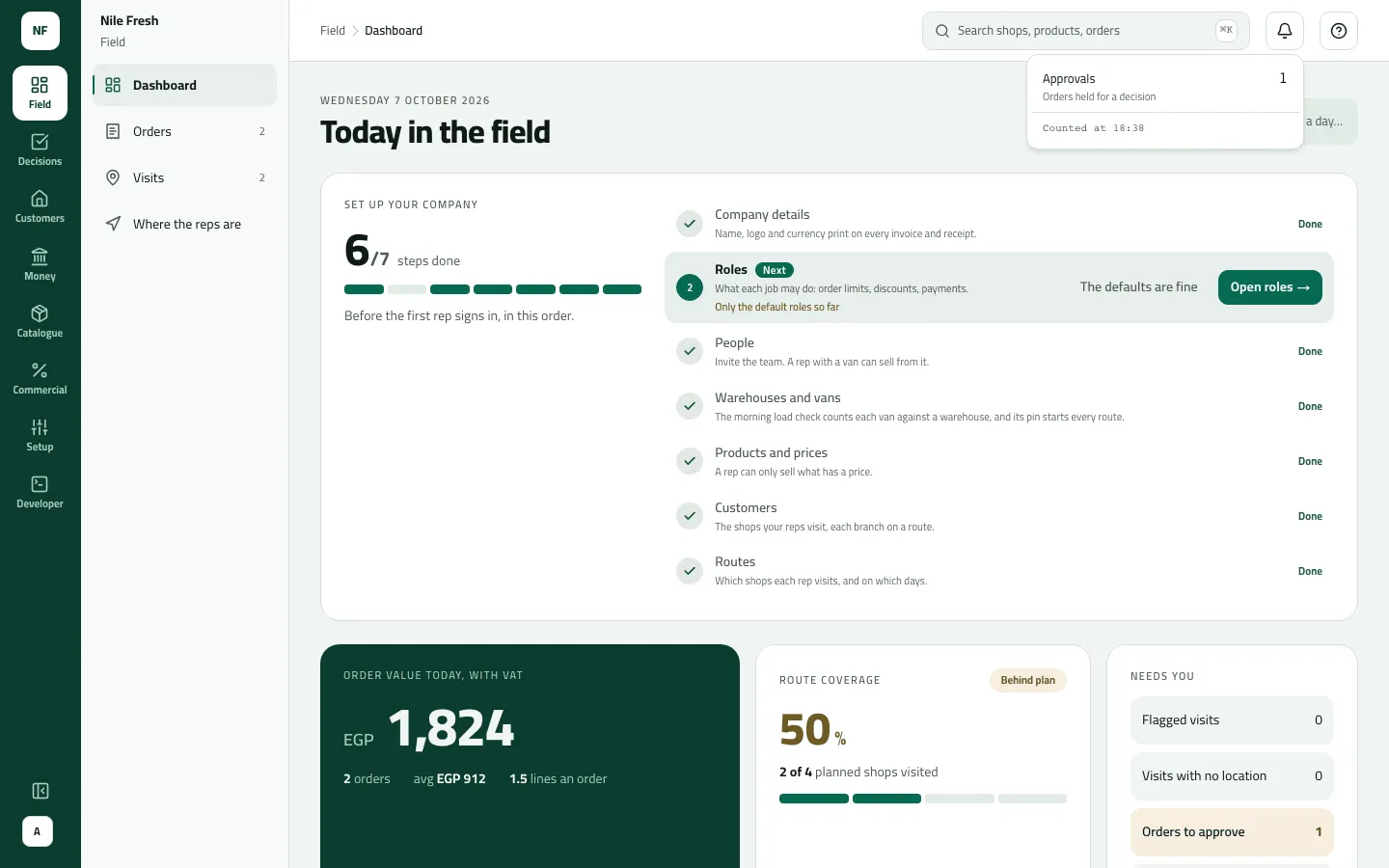
| Bell — What is waiting | Counts that need someone, refreshed every minute: Approvals, Returns to approve, Van loads, Day differences, Visits with no location, Integration tokens running out. Each row opens its screen. |
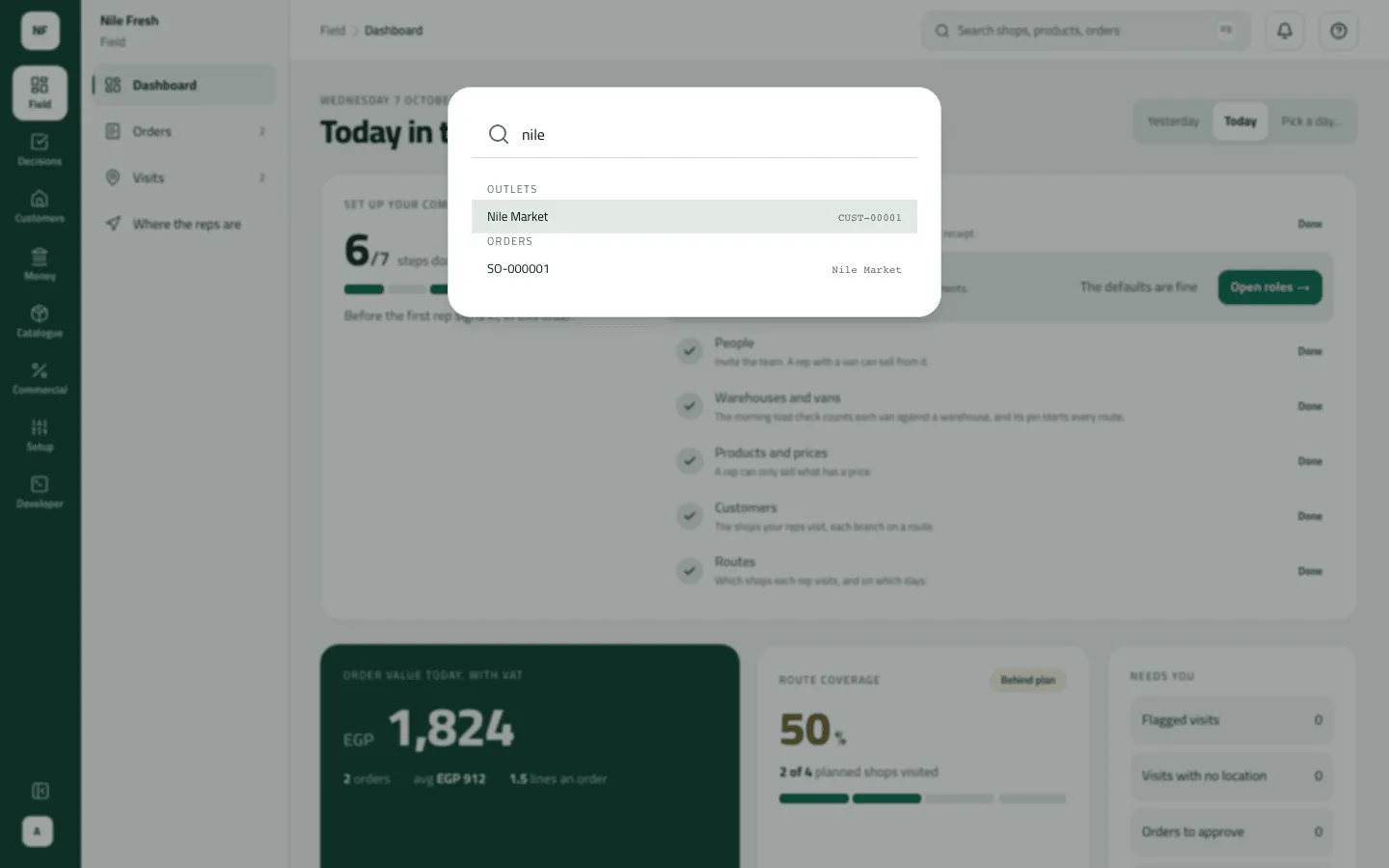
| ⌘K search | Press ⌘K (Ctrl K on Windows) or the search button and type two letters: it finds outlets, products and orders, five of each. |
| Profile menu | Your name and roles, Language, Theme, Change password, Sign out. |
The areas and their screens:
| Area | Screens |
|---|---|
| Field | Dashboard, Orders, Visits, Where the reps are |
| Decisions | Approvals, Returns |
| Customers | Outlets, Routes |
| Money | Invoices, Receipts, Credit notes · Receivables, Cash, Cheques, End of day |
| Catalogue | Products, Units, Price lists, Brands & categories, Stock, Holdings |
| Commercial | Promotions, Targets |
| Setup | Import, Users, Roles, Audit, Settings |
| Developer | Events (administrators) |
- Pick an area’s mark on the rail, then a screen in the pane.
- To jump to a record, press ⌘K and type part of its name, code or number; use the arrow keys and Enter, or click.
- To see what waits for you, open the bell. Opening it clears its badge.
- To change language or theme, open the profile menu: Language (English / العربية) and Theme (Follow the machine / Light / Dark). Both are kept on this browser only.
Example
Section titled “Example”Sara (Supervisor) signs in and lands on the Dashboard. At 11:05 Omar’s order for Delta Kiosk goes over its credit limit and waits; the bell’s panel shows Approvals 1 (SO-000002), and the row opens Decisions › Approvals. She presses ⌘K, types “nile”, and sees Nile Market under Outlets and its orders under Orders. From the profile menu she switches to العربية: the whole console mirrors to right-to-left.
What happens next
Section titled “What happens next”- Where you land. After sign-in you land on the Dashboard if your role can read reports;
otherwise on the first screen of the rail you may open.
/always goes to the Dashboard. - Language. If you never chose one, the console opens in the company’s default language (Setup › Settings). Your choice is kept on this browser and doesn’t change anyone else’s.
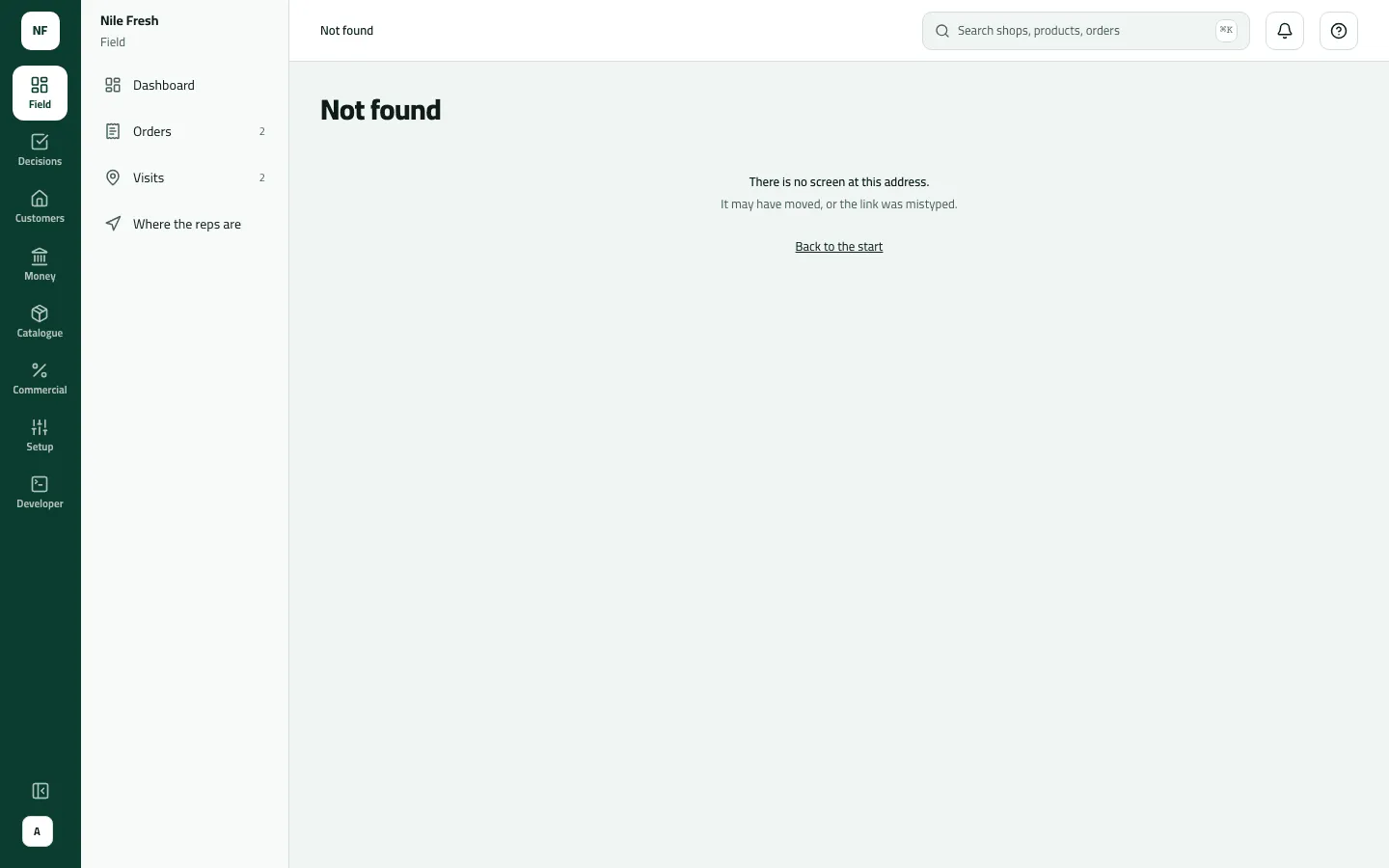
- An address with no screen shows “There is no screen at this address.” with Back to the start.
If something goes wrong
Section titled “If something goes wrong”| What you see | What to do |
|---|---|
A menu row is missing | Your role doesn't include that screen. Ask an administrator to add the permission to your role or give you an exception. |
You do not have access to this. Ask your administrator if your work needs it. MISSING_PERMISSION | You opened a screen by its address without the permission for it. Ask your administrator if your work needs it. |
The bell shows 2 but there are more things waiting | The badge counts kinds of thing whose number rose since you last opened the bell, not items. Open the panel for the numbers. New shops proposed by reps are not in the bell; see Approvals › New shops. |
You cannot see the dashboard | Your role has no report permission; the console moves you to the first screen you can open. |
Your session ended. Sign in again and you will be back where you were. | Closing the last console tab ends the session, and a tab opened from a link signs out within the hour. Sign in again. |