

What did the phones send?
A rep says “I sent it”, the office says “we don’t have it”. Developer › Events answers it: every order, payment, visit and load check a phone sent, with the answer it got. It also shows whether the hourly jobs ran and anything that gave up after it arrived. Who it happens to: the company administrator, when a rep’s work and the office’s screens disagree. Where in the cycle: every stage.
Before you start
Section titled “Before you start”- You need Run the company (full access) (TENANT_ADMIN). Others who open the page read “This needs the company administrator permission.”
Check, in this order
Section titled “Check, in this order”-
Open Developer › Events. Its first panel, From the phones, lists what the phones sent, refused first, 25 a page, with the number refused at the top.
-
Tick Refused only. Each row reads Rep (code and name), Operation (Order, Payment, Check-in, Check-out, Stop skipped, Return, Load checked, Load refused, Start day, End day, New shop proposed, Shelf check, Order withdrawn — with its number when it got one), Outcome (Refused, Accepted or Still working), Why it was refused in words, and When.
-
Find the rep and the time the rep gave you.
- Refused — it reached the office and was refused. The reason is the same one the rep sees on the phone under N items the office did not accept; look it up on Look up an error message and follow the fix there. A refused check-in is the one case the rep can’t see on the phone.
- Accepted — the office has it. Look again on its own screen (Orders, Receipts, Visits) with the right day and filters.
- Not listed — it never left the phone. The rep syncs in signal (My work hasn’t reached the office). Work the phone marked failed is never listed here.
-
Read Background jobs: Day close (closes days nobody ended), Round generation (makes the reps’ day plans) and Old records cleared, each with Last run, Outcome (Ran clean, Some failed, Failed) and Done / failed. “No job has run yet” is normal for the first hour of a new company.
-
Read Gave up: a reaction to something that happened (for example, sending an order on to your ERP) that failed after all its tries. Each row says what gave up, when, how many tries and the last error. Once the cause is fixed, press Requeue: it goes back in the queue, due now.
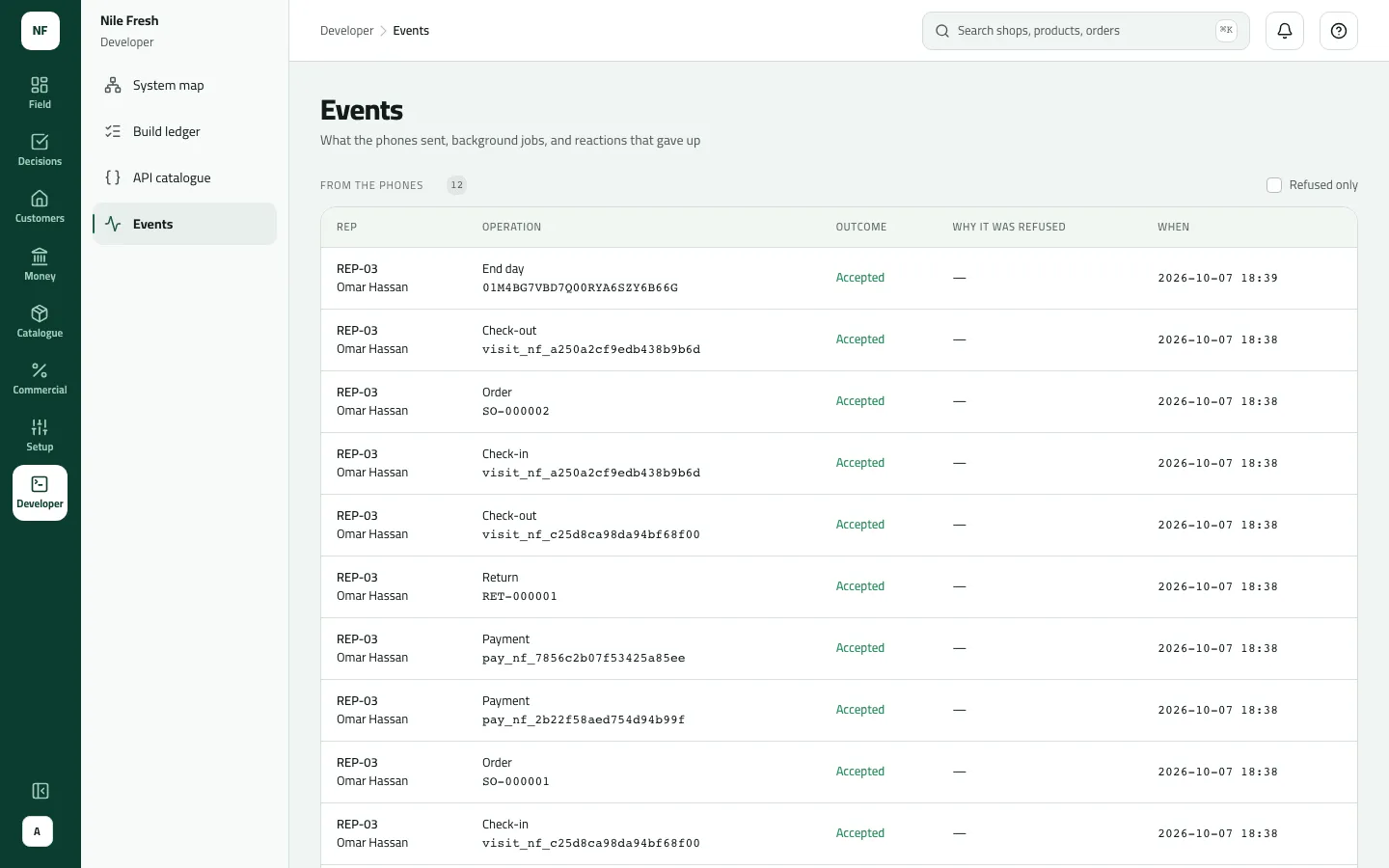
Everything the phones sent on the Nile Fresh day was accepted, so nothing here is refused.
- Why it was refused
- Refused only
Example
Section titled “Example”Suppose Omar’s phone still counts 10 Juice 1L on his van, but the office’s stock for VAN-03 says 8. At 12:40 he sells 10 at Zamalek Corner from the van; at his next sync the office refuses it. On Events, with Refused only ticked, the top row reads REP-03 · Omar Hassan · Order · Refused · Your van doesn’t have enough of a product. Lower the quantity. · 12:52. Omar sees the same order in red on his Orders tab and uses Fix and resend with 8.
What happens next
Section titled “What happens next”- Requeue is recorded in the audit trail.
- Nothing on this page changes a rep’s work: a refused operation is fixed by the rep on the phone, or by the office on its own screen.
If something goes wrong
Section titled “If something goes wrong”| What you see | What to do |
|---|---|
This needs the company administrator permission. | Only someone with Run the company opens Events. |
Nothing from the phones yet | No phone has synced work yet. Normal for a new company. |
No phone was refused | Everything the phones sent was accepted. If something is missing, it never left the phone. |
Round generation · Failed | Reps may have empty days. Contact Slflo with the time of the last run. |
Could not requeue it | Refresh the page; if the row is still there, try again later or contact Slflo. |
When to contact Slflo
Section titled “When to contact Slflo”When a background job reads Failed or Some failed more than once, or the same reaction gives up again after Requeue. Copy the row (what gave up, when, the last error) into your message.