

Find customers and close the gaps
Every customer and the branches reps visit, with the gaps that stop a rep working them. Who: administrators and supervisors · Where in the cycle: Set up.
The menu row says Outlets; the page is called Customers. They are the same thing — the phone calls them shops.
Before you start
Section titled “Before you start”- See customers (CUSTOMER_VIEW) opens the list — only the customers your role reaches.
- Add and change customers (CUSTOMER_MANAGE) shows New customer, Import and the row menu (Edit, Terms, Remove).
- Manage people (USER_MANAGE) shows the tick boxes and Add to a route….
The Customers screen
Section titled “The Customers screen”- The strip on top counts your whole reach: Customers (and branches), Not on a route (branches no rep visits), No map pin (can’t check in properly), Blocked (no new orders). Amber means something to fix.
- Search finds a customer or branch by name, code, address or area. The chips Not on a route, No map pin, Blocked, and Route ▾ / Channel ▾, narrow the list. List | Map switches the view.
- One row per branch: Customer, Branch, Route · days, Credit left (the account’s figure, “shared” by its branches, or a branch’s own), Pin (with its radius).
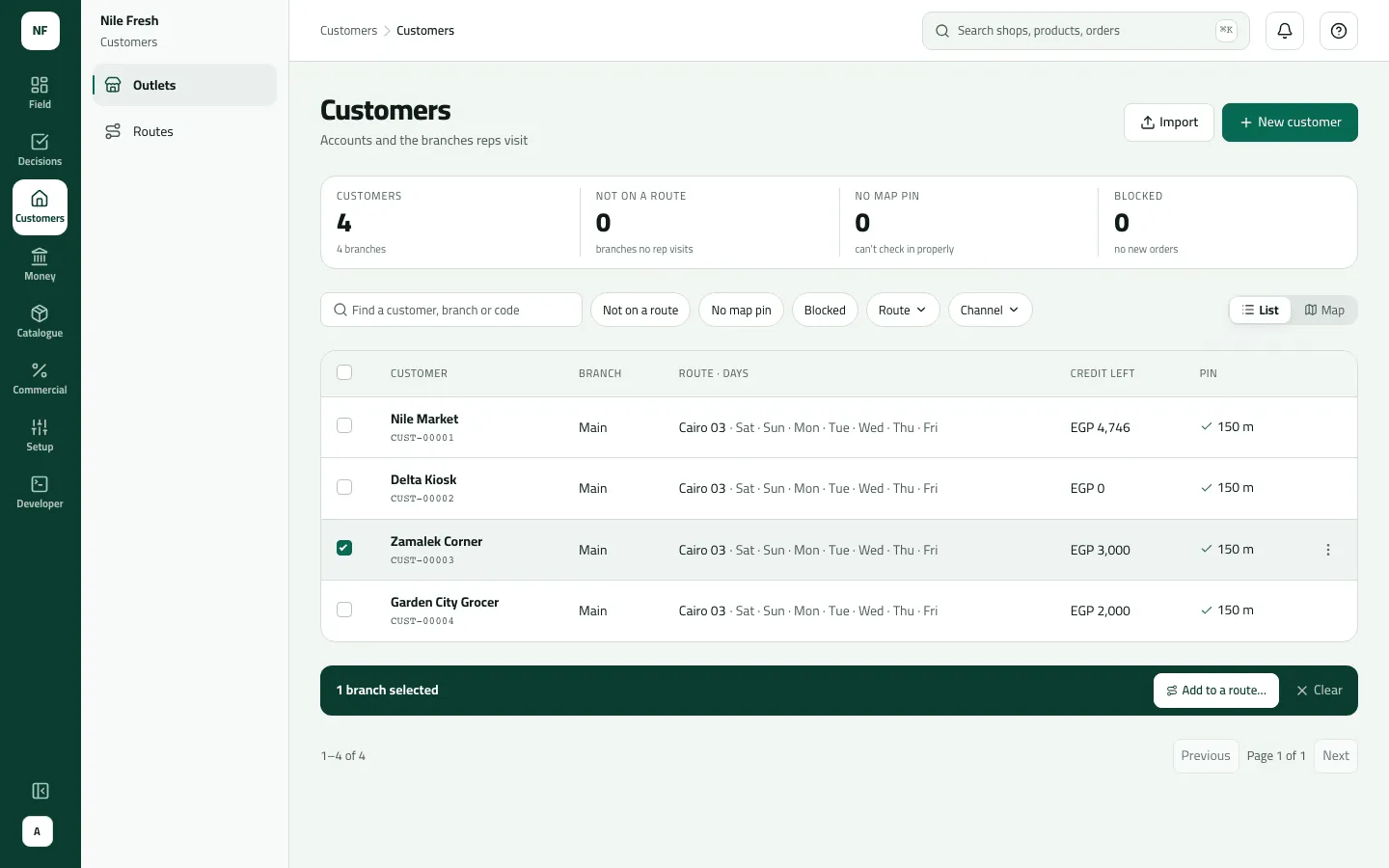
- Not on a route
- No map pin
- Credit left
Put branches on a route
Section titled “Put branches on a route”- Press the Not on a route chip.
- Tick the branches (or draw round them on the Map).
- Press Add to a route… in the bar that appears.
- Pick the Route, the Visit days, How often (Every week, Every 2 weeks, Weeks 1 and 3, Once a month) and From (today up to 180 days ahead).
- Press Check what changes, read it, then Add N branches.
Change payment terms quickly
Section titled “Change payment terms quickly”Row menu › Terms: Payment terms (days, 0 = cash on delivery), Trade channel, Delivery days. Save terms.
Example
Section titled “Example”At the end of the Nile Fresh day the list shows 4 customers and nothing amber. Delta Kiosk shows Credit left 0.00 (it owes 456.00 on a 300.00 limit); Nile Market 4,746.00 (5,000 limit, owes 254.00).
Suppose a fifth shop, El Salam Market, shows Not on a route and No pin. Tick it, Add to a route… → CAIRO-03, Thursday, Every week, from tomorrow → Check what changes → Add 1 branch. Then open it and set its pin.
What happens next
Section titled “What happens next”- Branches added to a route are planned from the date you chose; Omar’s phone shows them on that day after a sync.
- Remove (row menu) takes a customer off every route from today; its orders, invoices and debts stay.
- All changes are in the audit trail.
If something goes wrong
Section titled “If something goes wrong”| What you see | What to do |
|---|---|
I see fewer customers than the company has | The list shows only the customers your role reaches (for a supervisor, their team's). |
No tick boxes | You don't hold Manage people, which putting branches on routes needs. |
The map shows fewer customers than the strip | The map shows the first 100 customers. |
A branch on a draft route counts as Not on a route | Only active and paused routes count. Finish the draft in the wizard. |
Choose today or a later date. ROUTE_DATE_IN_PAST | Choose today or a later date. |
Choose a date within the next 180 days. ROUTE_DATE_TOO_FAR | Choose a date within 180 days. |
This branch is already on the route. ROUTE_BRANCH_ALREADY_ON_ROUTE | That branch is already on the route; change its days on the route page instead. |
Payment terms aren't usable. Write the days to pay, from 0 for cash up to 365. INVALID_TERMS | Payment terms are whole days, 0 to 365. |
This comes from your ERP, so it can't be changed here. Change it in the ERP. ERP_MASTERED | This customer comes from your ERP; the edit buttons show but change it in the ERP. |