

Record or reverse a payment at the office
Most payments are taken by reps on the phone. When a customer pays the office — at the counter or by transfer — record it on the customer’s statement. Who: office · Where in the cycle: Collect.
Before you start
Section titled “Before you start”- Take payments (PAYMENT_RECORD) shows the payment form; your role’s Largest payment limit applies (the built-in Supervisor: 50,000). Reverse payments (PAYMENT_REVERSE) shows Reverse — the Administrator only, by default. Issue receipts opens the receipt.
- Have the reference for anything but cash: the transfer, InstaPay or wallet message, or the cheque’s number.
- Open Money › Receivables and click the customer — or, if it owes nothing, press Any outlet and find it.
- In the payment form type the Amount (at most two decimals).
- Choose the Method: Cash, InstaPay, Mobile wallet, Transfer or Cheque.
- Type the Reference (not needed for cash). For a cheque, the cheque number; add the Bank and the Cheque date.
- Press Record payment. The notice says what it did: “Recorded … EGP · N items cleared · N part-paid · … left on account”.
- Open the customer’s statement on Money › Receivables.
- In the payments table at the bottom of the panel, press Reverse on the payment.
- Write the reason and confirm.
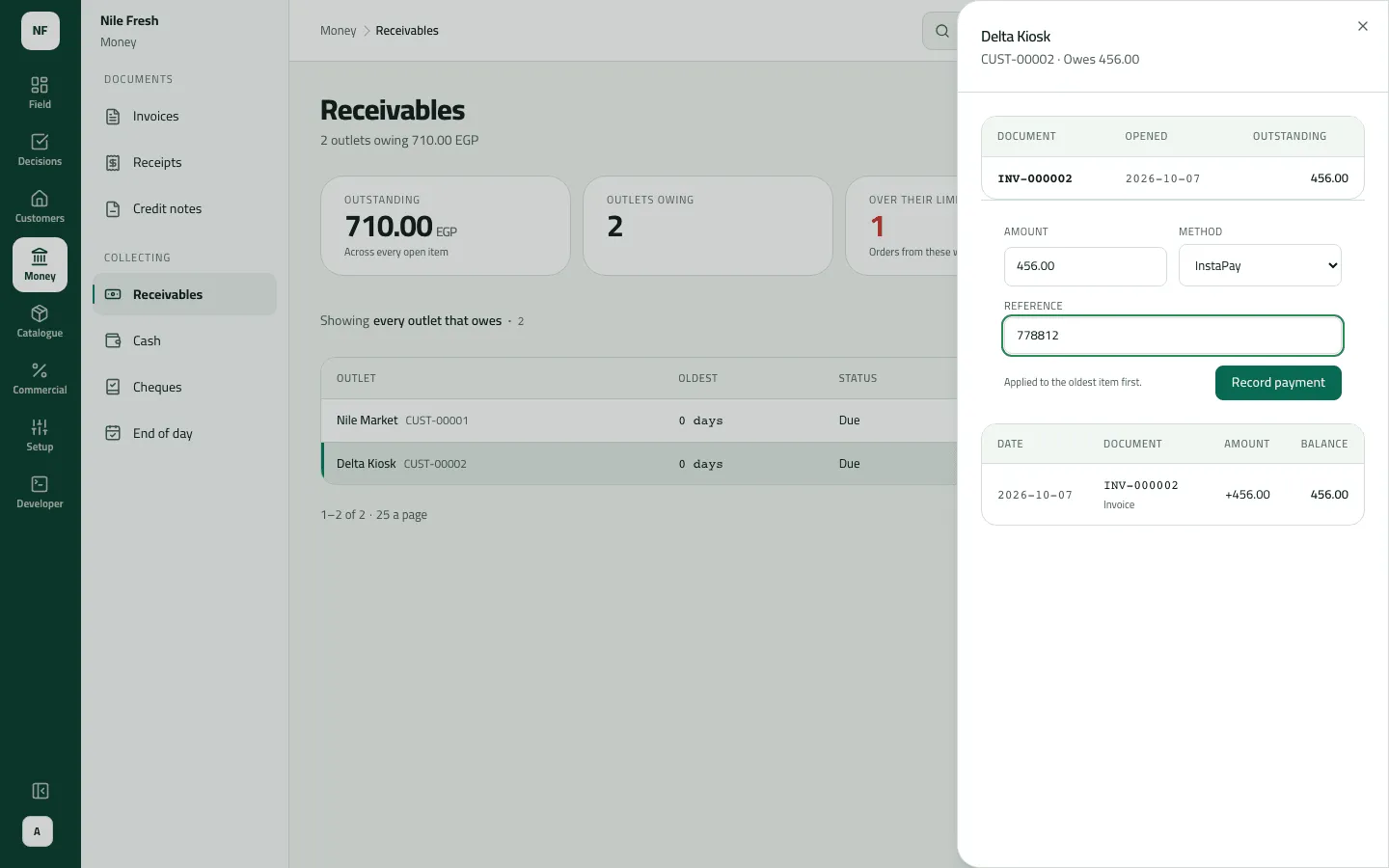
- Amount
- Method
- Reference
- Record payment
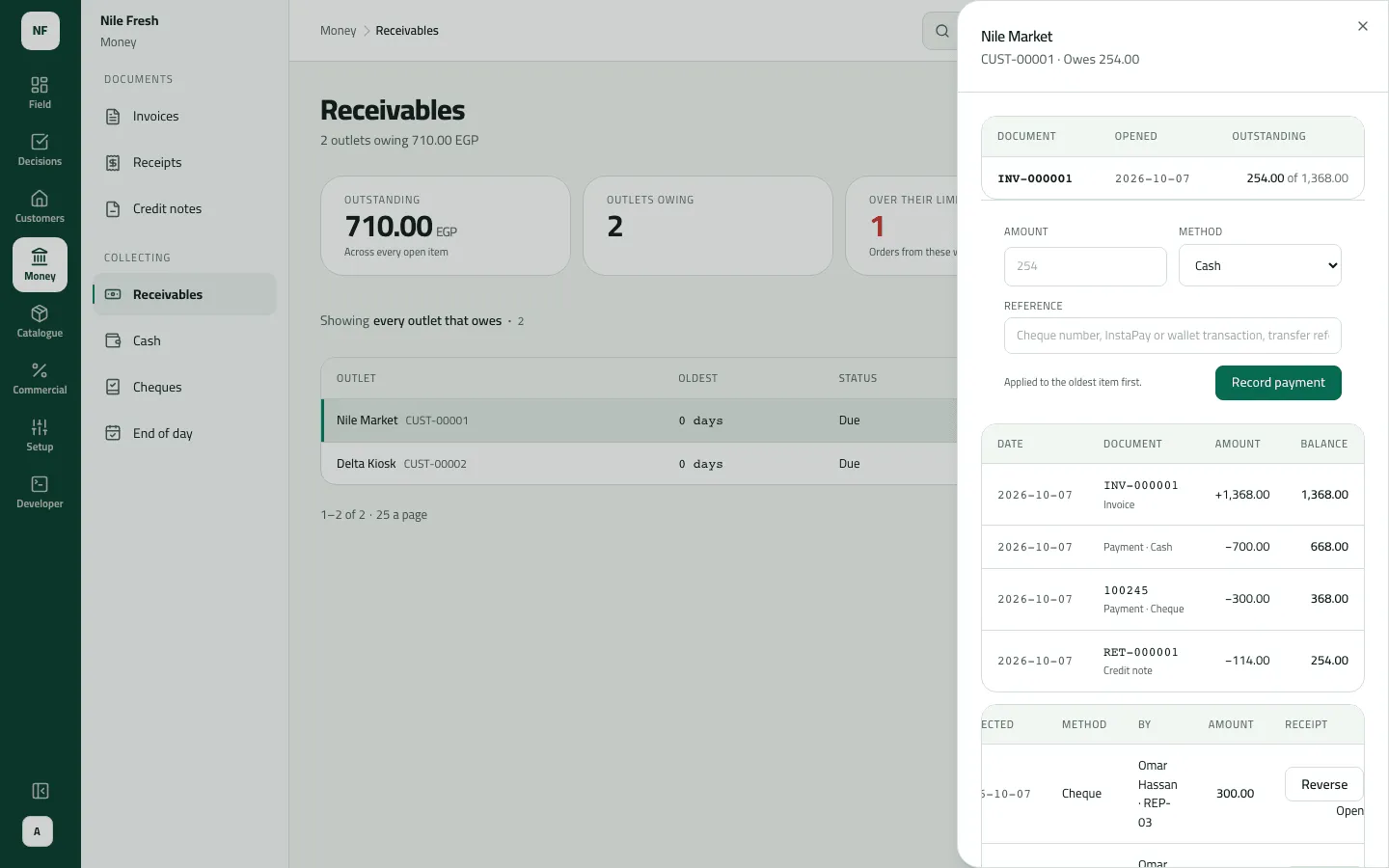
- Reverse
“Applied to the oldest item first.” A payment pays the oldest open invoices; anything over what is owed stays on account and is used on the next invoice.
Example
Section titled “Example”Suppose the morning after the Nile Fresh day, Delta Kiosk pays its 456.00 to the office by InstaPay, reference 778812. The office records it: “Recorded 456.00 EGP · 1 item cleared”, and the receipt is RC-000003.
| Item | Before | After | Change |
|---|---|---|---|
| Delta Kiosk owes | 456.00 EGP | 0.00 EGP | −456.00 |
Had it been recorded on the wrong customer, the administrator would press Reverse with “Wrong customer”: RC-000003 turns Void and INV-000002 is owed again. Then record it on the right one.
What happens next
Section titled “What happens next”- Money: the payment clears the oldest invoices; the rest stays on account. What the customer owes drops at once.
- Documents: a receipt numbered RC- (Find and reprint a receipt). A cheque goes onto Cheques, starting At the office.
- Cash: cash taken by the office isn’t in any rep’s hand, so it doesn’t appear on Cash.
- Reverse: what the payment cleared is owed again, its receipt is voided, and a cheque payment’s cheque is voided.
- ERP: payments, and reversals, are in the payments feed your ERP reads.
- Audit: “Took a payment” / “Reversed a payment”.
If something goes wrong
Section titled “If something goes wrong”| What you see | What to do |
|---|---|
This payment is more than your role may record at once. Record a smaller amount, or ask someone with a higher limit. OVER_LIMIT | It's above your role's largest payment. Record it in parts, or ask someone with a higher limit. (This message shows in English for now.) |
Add the reference from the cheque, transfer, InstaPay or wallet message. REFERENCE_REQUIRED | Every method but cash needs its reference. Type it. |
Amounts have at most two decimals (piastres). Round it and enter it again. AMOUNT_TOO_PRECISE | Use at most two decimals. |
That amount is too large to be one payment. Check the digits and enter it again. AMOUNT_TOO_LARGE | Check the digits. |
This payment was already reversed. ALREADY_REVERSED | It was already reversed. Refresh the statement. |
Add a reason, then send again. REASON_REQUIRED | A reversal needs a reason. |
There is no Reverse button | Reversing needs Reverse payments, the Administrator's by default. |