

Install the app and sign in
The phone app ties one phone to one rep of one company. You sign in once; after that the app works without signal. Who: rep · Where in the cycle: Set up.
Before you start
Section titled “Before you start”- The office has made your account and put you on a round (Get a new rep on the road).
- You have a username and a temporary password from the office. An email invitation or an invitation link does not work in the phone app; ask for a temporary password instead.
- Your company gave you the app (an Android phone). If your app asks for a Company, you also need the company code.
- The first sign-in needs signal.
- Open the app. It opens in Arabic; to switch, tap English at the top of the screen (it is written in the other language: العربية switches back).
- If the app shows Company, type your company code. It remembers the last company signed into on this phone. An app made for one company doesn’t ask.
- Type your Username and Password and tap Sign in.
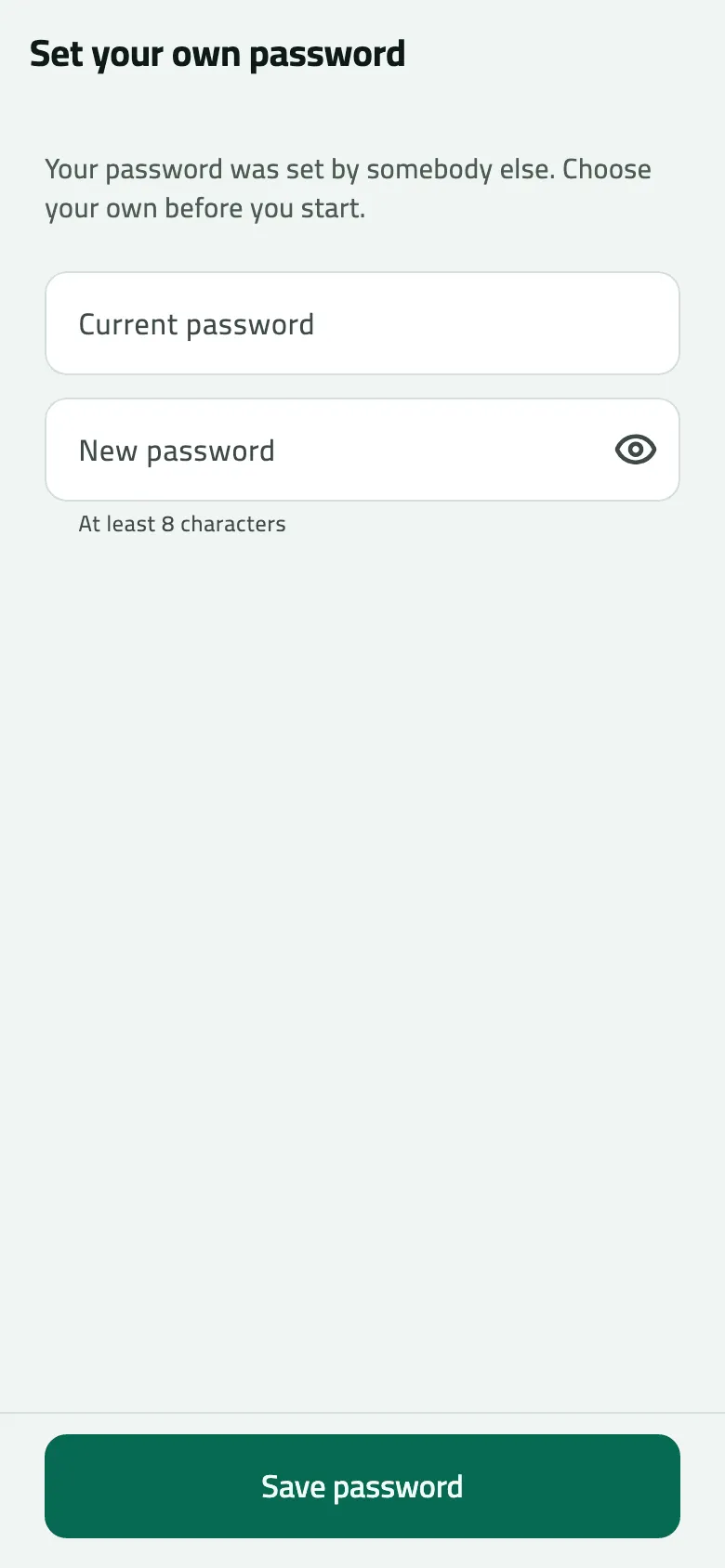
- If the office set your password, the app shows Set your own password: “Your password was set by somebody else. Choose your own before you start.” Type the Current password (the one you were given) and a New password of at least 8 characters, then tap Save password.
- Today opens and fetches your round, your shops and your van.
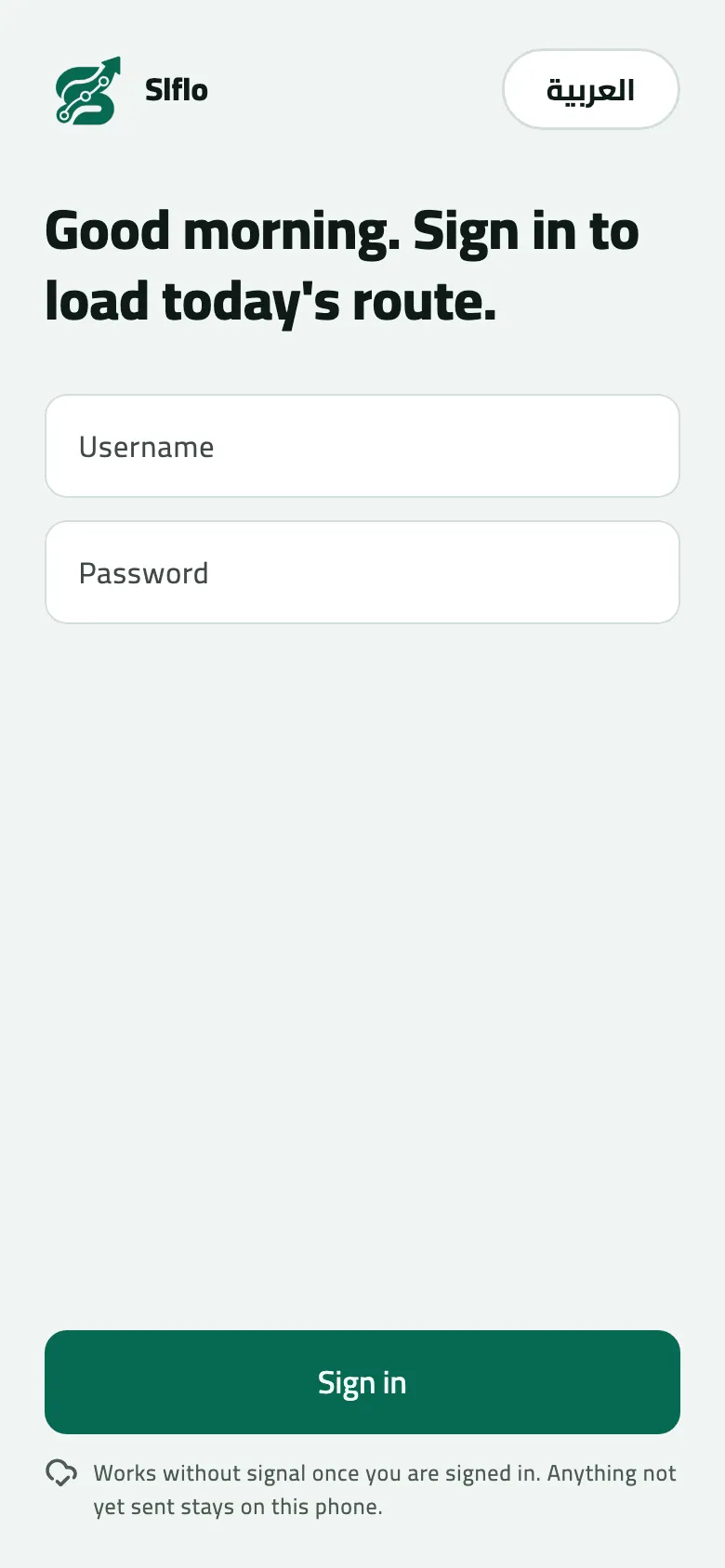
- Switch the app between English and Arabic
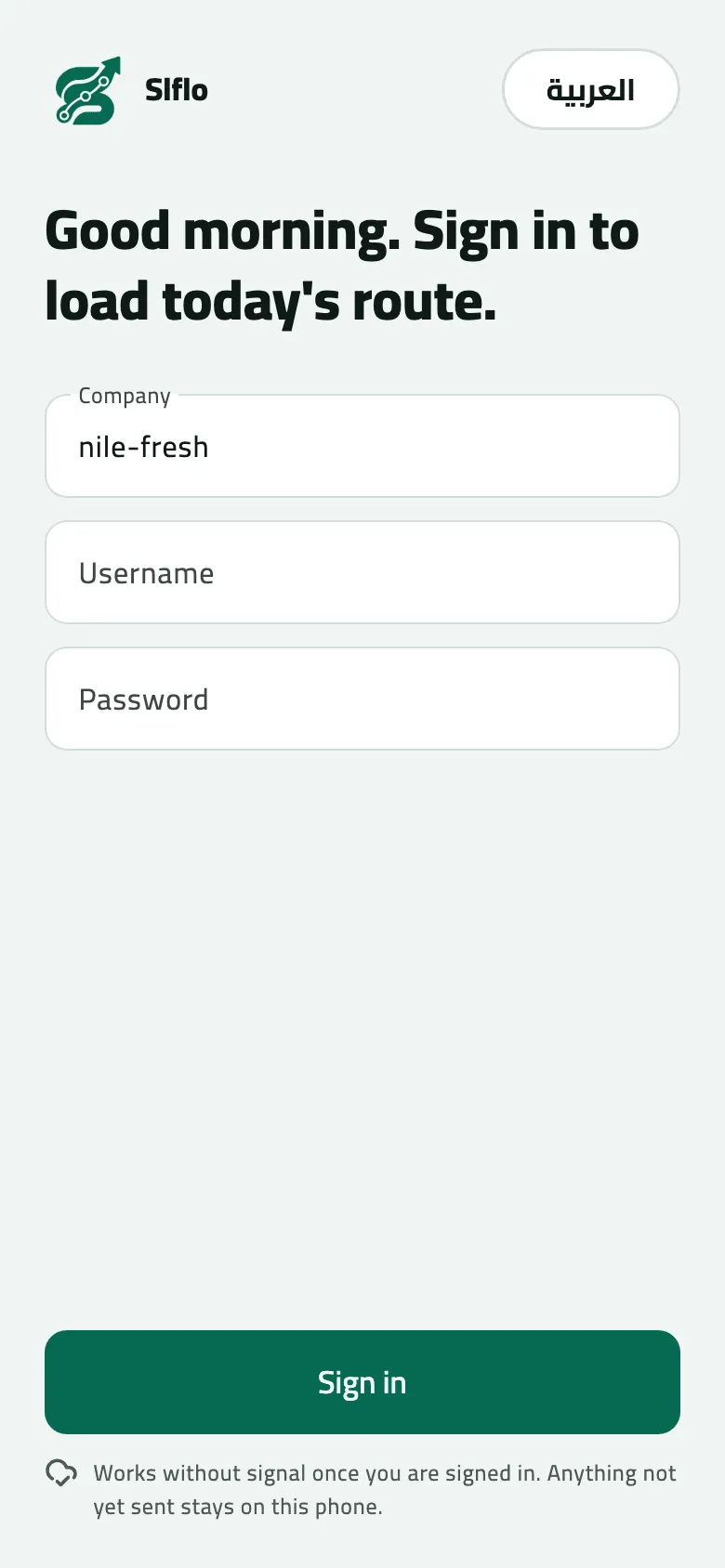
- Language switch
- Company: the company code your office gave you
The note under the button says what to expect: “Works without signal once you are signed in. Anything not yet sent stays on this phone.”
Example
Section titled “Example”Omar is Nile Fresh’s rep REP-03. The office gave him username omar and a temporary password.
He types nile-fresh, omar and the password and taps Sign in. The app asks him to Set
your own password; he types the given password, then his own, and taps Save password.
Today opens on his round of four shops for the day.
What happens next
Section titled “What happens next”- This phone becomes yours. The office sees it under your account, with the Device ID shown in Settings. Your company has a number of phone slots; reinstalling the app makes a new device and takes another slot.
- One phone, one rep. If another rep signs in on your phone after you, the app clears your data for them — but only when everything you did has been sent. While anything of yours is waiting, their sign-in is refused.
- Your session lasts. You stay signed in through restarts and without signal. If the office ends the session, the app returns to sign-in with “Your session ended. Sign in again — your work is kept.” Nothing you saved is lost.
- To change your password later, open Settings › Change password.
If something goes wrong
Section titled “If something goes wrong”| What you see | What to do |
|---|---|
Incorrect username or password. Check the company code too: nile-fresh | On an app that asks for a Company, a wrong company code gives this message too. The message names the code it tried; check it first. |
Incorrect username or password | Check the username (no capitals) and the password. Ten wrong passwords lock the account. |
Too many wrong passwords. Ask your supervisor to unlock your account. ACCOUNT_LOCKED | Too many wrong passwords. An administrator unlocks the account on Setup › Users and should set a new temporary password too. |
This account is suspended. Contact your administrator. ACCOUNT_SUSPENDED | Ask the office to bring your account back. |
Your company has no free phone slots. Ask an administrator to remove an old phone. DEVICE_LIMIT | Every phone slot your company has is taken. There is no screen to remove an old phone yet — ask your office to contact Slflo to free a slot. |
This phone is no longer allowed to sign in. Ask your administrator. DEVICE_REVOKED | The office removed this phone. Ask them to allow it again, or use the phone they give you. |
Too many attempts. Wait a minute and try again. RATE_LIMITED | Wait a minute, then try again. |
Work from Omar hasn't been sent yet. Sign in as them and sync first, or ask your supervisor. | Another rep's work is still waiting on this phone. That rep signs in and pulls down on Today until everything is sent; then you can sign in. |
Could not reach the server. Try again. | The first sign-in needs signal. Move to where there is signal. |
That current password is not right | Type the temporary password the office gave you in Current password. |
That is the password you already have | Choose a different new password. |
The sign-in messages that come from the server (“Incorrect username or password”, locked, suspended) may appear in English on the Arabic screen. They mean the same as above.